Build a Flow Across Pages
Move users between pages in a Flow with Redirect or Let them navigate.
Table of Contents
When a Flow's steps are on different pages, tell Appcues how the user gets from one page to the next: send them there automatically, or wait for them to get there themselves. Also known as a multi-page Flow, a redirect, or a page change. This article covers Flows 2.0; for legacy Flows, see Using legacy Flows? below.
When a step needs navigation
Any step that shows on a different page from the step before it needs a navigation setting. Without one, the Flow stops when the page changes. Start the Flow with a step on the current page, such as a Modal, and add navigation from the second step on. The first step has no navigation setting.

Add navigation to a step
- Open the Flow in the builder and select the step that shows on the new page.
- On the step's Settings tab, open Navigation.
- Under How should the user get here?, choose Redirect or Let them navigate.
- Enter the URL. In the Chrome extension, you can instead click Set URL from current page, go to the page in your app, and save the URL.
Navigation is set in the default language. In another language, switch back to the default language to change it.
Choose Redirect or Let them navigate
| Option | Use it when | What happens |
|---|---|---|
| Redirect | The step before has a button, such as Next, that should take the user to the new page. | Before showing the step, Appcues sends the user to the URL in Redirect to. |
| Let them navigate | The user gets to the new page by using your app, such as clicking the menu item a Tooltip points at. | Appcues waits until the user is on a page that matches Expect page to match, then shows the step. |
URL-encode special characters. If the Redirect to URL contains special characters, encode them:
| Character | Encoded |
|---|---|
| Space | %20 |
* |
%2A |
+ |
%2B |
& |
%26 |
= |
%3D |
? |
%3F |
For example: https://app.example.com/%2A/customer?name=Ricky%20Perez
For Let them navigate after a Tooltip, turn on Advance on click of element in the Tooltip's Behavior settings, so clicking the element moves the Flow on. See Build Flows 2.0.
Match pages for dynamic URLs
Some URLs contain parts that differ for each user or record, such as an ID in /files/5e0df/. Handle them with a wildcard or a user property.
Use wildcards with Let them navigate
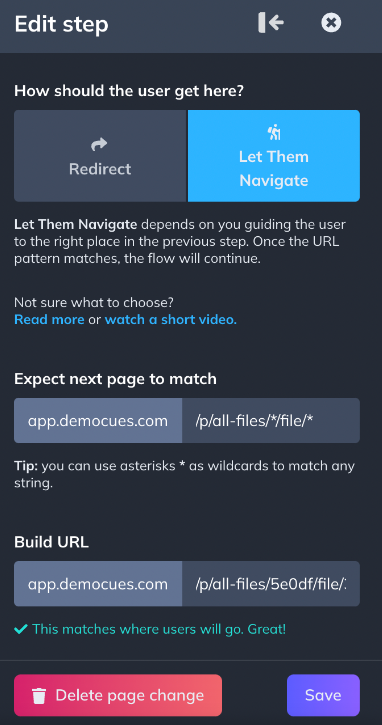
Replace each changing part of the URL with * in Expect page to match:
- Real URL:
https://app.example.com/p/all-files/5e0df/file/3dfe08 - Pattern:
https://app.example.com/p/all-files/*/file/*
A Build URL field appears. Enter one real URL that matches, so the builder can open that page while you edit the step.

Wildcards work only with Let them navigate. A redirect needs a real address, so Redirect shows "Wildcards (*) can only be used with Let them navigate."
Put wildcards only on the parts that change, and keep the rest of the URL exact. If your app loads a page in stages, such as /settings?view=a and then /settings?view=a&tab=b, a broad pattern like /settings* matches the first URL too early, and the next step can disappear when the page finishes loading. Match the final URL instead: /settings?view=*&tab=*.
Use user properties in a URL
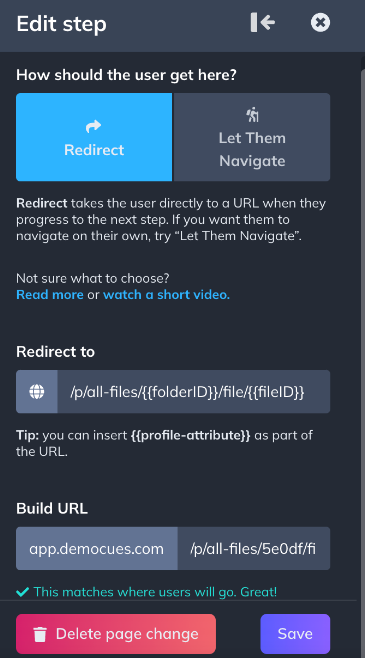
To send each user to their own page, put a user property in the URL with double curly braces. This works with both options:
- Real URL:
https://app.example.com/p/all-files/5e0df/file/3dfe08 - With properties:
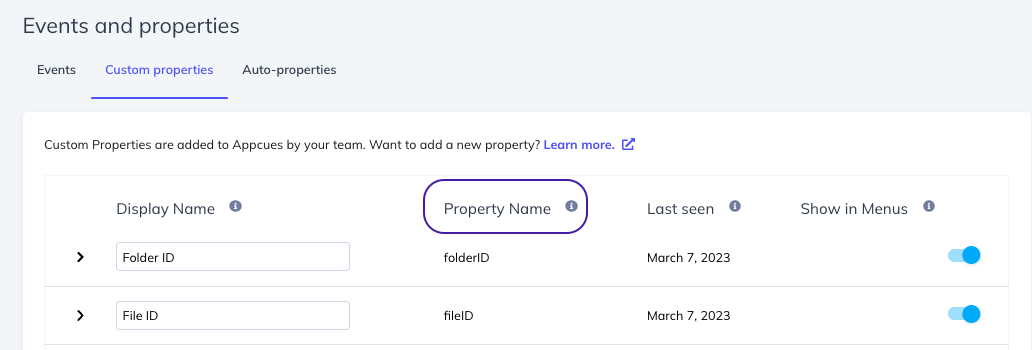
https://app.example.com/p/all-files/{{folderID}}/file/{{fileID}}
As with wildcards, a Build URL field appears for a real URL the builder can open. At runtime, Appcues fills in each user's values. Every user who sees the Flow needs a value for the property, usually sent in your Appcues.identify() call. The name must match the property exactly, including capitals. See Personalize experiences with user properties.

Using legacy Flows?
In the legacy Flow builder, navigation is its own step between two content steps.
- Open the Flow in the builder and click Navigate in the bottom-left corner. The builder enters navigation mode, so you can use your app as a user would.
- Go to the page where the next step should show.
- Click Switch back to Build mode. A navigation step is added between the two pages.
- In the navigation step's settings, choose Redirect and enter the URL in Redirect to, or choose Let them navigate and enter the pattern in Expect next page to match.

Don't start a legacy Flow with a navigation step. A redirect as the first step sends users to a new page with no context, and the Flow's analytics don't record correctly.
If a Tooltip before a Let them navigate step has no Next step button, clicking its target element moves the Flow on to the navigation step.
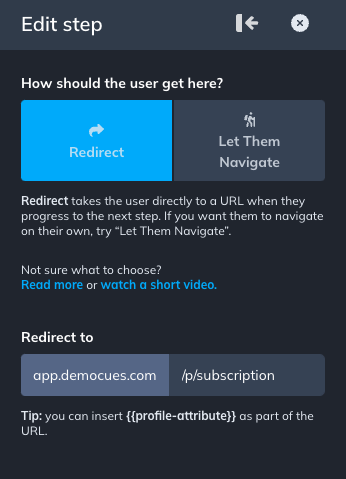
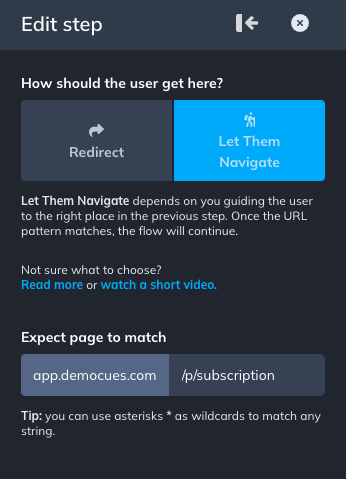
Wildcards and user properties work the same way as above. When you use them, keep the step's Build URL set to a real URL, and wait until the page has reached its final URL before you click Switch back to Build mode.
Confirm it worked
- Go through the Flow as a test user. At each page change, check that you land on the right page and the next step shows. See Preview and test an experience.
- If you used wildcards or user properties, test with at least two users whose URLs differ.
If the Flow doesn't continue on the new page
- The Flow stops when the page changes: the step on the new page has no navigation setting. Add Redirect or Let them navigate.
- The redirect goes to the wrong page: check the Redirect to URL for typos.
-
The redirect goes to the wrong domain: if your site has an HTML
<base>element with a different origin from the page, older Appcues SDK versions resolve relative URLs such as/dashboardagainst it. Current SDK versions use the page's own address. On an older SDK, use full URLs, including the domain. - Let them navigate never continues: the page the user lands on doesn't match the pattern. Compare the pattern with the real URL, including any query string, and check that the wildcards are on the right parts. If the page loads in stages, match its final URL.
- A user property isn't filled in: check that the name matches exactly, including capitals, and that the user has a value for it.
If it's still not working, contact support with the Flow's Experience ID (on its Settings tab, in Who changed this), a screenshot of the step's Navigation settings, the URLs the user starts on and should reach, and the affected user's User ID.