Submit Article Requests

Do you have a suggestion for an article you would like to see created?
Feel free to submit this form and add your suggestions to our document board.

Please fill out the contact form below and we will reply as soon as possible.

  • Integration Hub
  • Contact Us
  • Docs home
  • Web Experiences
  • Flows

Manage Flow steps

Clone, delete, save as template, and reorder steps within a Flow using the Appcues Builder.

Updated at March 23rd, 2026

Submit Article Requests

Do you have a suggestion for an article you would like to see created?
Feel free to submit this form and add your suggestions to our document board.

Please fill out the contact form with the details about the help content you'd like to see.

  • Home

  • Getting Started

    • Installation & Developers

      • Web Experiences

        • Mobile Experiences

          • Workflows

            • Analytics & Data

              • Account Management

                • Integrations

                  Table of Contents

                  Clone a step Save a step as a template Use a saved template Delete a step Reorder steps

                  Clone a step

                  Create an exact copy of a step and insert it next to the original.

                  1. Select the step you want to copy in the Builder.
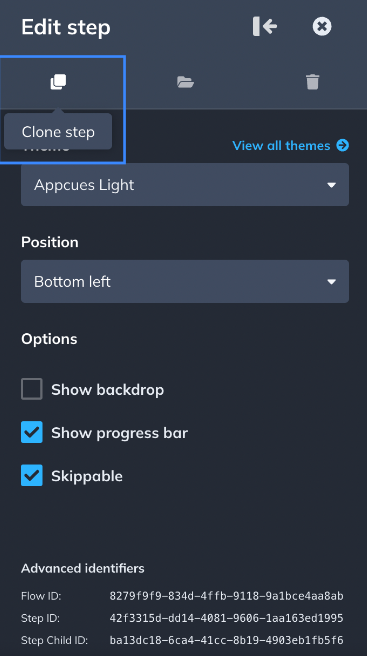
                  2. Click the Clone step icon (square icon) in the step settings menu. The cloned step appears immediately after the original, in the same step group.
                  Save a step as a template

                  Save a step's content and styling for reuse across Flows.

                  1. Select the step in the Builder.
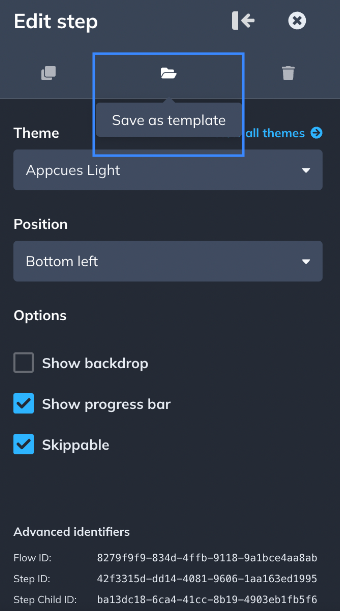
                  2. Click the Save as template icon (folder icon) in the step settings menu.

                  Appcues saves the step's content and styling (font color, line height, margins, etc.). The following are not saved with the template:

                  • Theme
                  • Backdrop settings
                  • Beacon settings
                  • Skip options

                  These settings are inherited from the group you add the template into, or they use default values if you create a new group.
                  Use a saved template

                  1. Click + Add and select the pattern type (Modal, Slideout, Tooltip, or Hotspot).
                  2. Click the Saved tab.

                  Select your template. The step is added with the saved content and styling.

                  Delete a step

                  Select the step in the Builder.

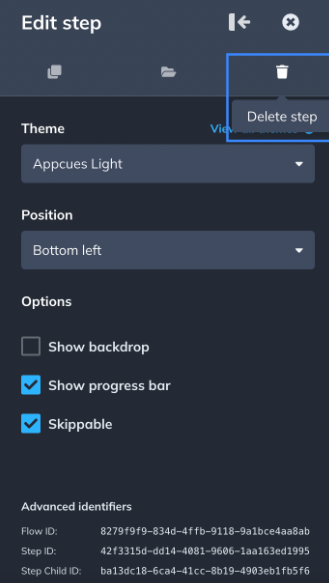
                  Click the Delete step icon (bin icon) in the step settings menu. The step is removed immediately.

                  Deleting a step cannot be undone. If you might need the step later, save it as a template first.
                  Reorder steps

                  Steps within a step group can be rearranged by dragging them in the Builder's step list. However, there are constraints:

                  • Steps can't be moved between groups. To move a step to a different group, save it as a template, delete it from the current group, then add it to the target group from the Saved tab.
                  • Only entire step groups can be reordered relative to other groups. You can't extract a single step from a group and place it between two other groups.

                  For more on how step groups affect progression, Themes, and completion tracking, see Flows overview.

                  clone step save template delete step saved web templates

                  Was this article helpful?

                  Yes
                  No
                  Give feedback about this article

                  Related Articles

                  • Build a Flow Across Pages
                  • Add "Snooze" / "Show later" options in a Flow
                  • Launchpad v1
                  Appcues logo

                  Product

                  Why Appcues How it works Integrations Security Pricing What's new

                  Use cases

                  Appcues Integration Hub User Onboarding Software Feature Adoption Software NPS & Surveys Announcements Insights Mobile Adoption

                  Company

                  About
                  Careers

                  Support

                  Developer Docs Contact

                  Resources

                  The Appcues Blog Product Adoption Academy GoodUX Case studies Webinar Series Made with Appcues

                  Follow us

                  Facebook icon Twitter icon grey Linkedin icon Instagram icon
                  © 2022 Appcues. All rights reserved.
                  Security Terms of Service Privacy Policy

                  Knowledge Base Software powered by Helpjuice

                  Expand