Submit Article Requests

Do you have a suggestion for an article you would like to see created?
Feel free to submit this form and add your suggestions to our document board.

Please fill out the contact form below and we will reply as soon as possible.

  • Integration Hub
  • Contact Us
  • Docs home
  • Mobile Experiences
  • Building mobile experiences
  • Mobile Flows & Embeds

Build mobile Flows

Create a mobile Flow and manage its steps in the mobile builder.

Updated at July 16th, 2026

Submit Article Requests

Do you have a suggestion for an article you would like to see created?
Feel free to submit this form and add your suggestions to our document board.

Please fill out the contact form with the details about the help content you'd like to see.

  • Home

  • Getting Started

    • Appcues App

      • Installation & Developers

        • Web Experiences

          • Mobile Experiences

            • Workflows

              • Analytics & Data

                • Account Management

                  • Integrations

                    Table of Contents

                    Prerequisites Create a Flow Add, delete, clone, and reorder steps Undo and redo changes Confirm it worked If you can't preview or publish

                    Create a mobile Flow and work with its steps in the mobile builder. For web Flows, see Building Flows.

                    Prerequisites

                    • A registered mobile app in Appcues.
                    • The Appcues Mobile SDK isn't required to create a Flow, but you can't preview or publish one until installation is complete. See Installing Appcues in Mobile Applications.

                    Create a Flow

                    1. In Appcues, go to Experiences > Flows and click Create a Flow.
                    2. Choose the app you're designing for, name the Flow, add any tags, and click Create. The mobile builder opens with a default Modal.
                    3. Choose the step type for your first step.
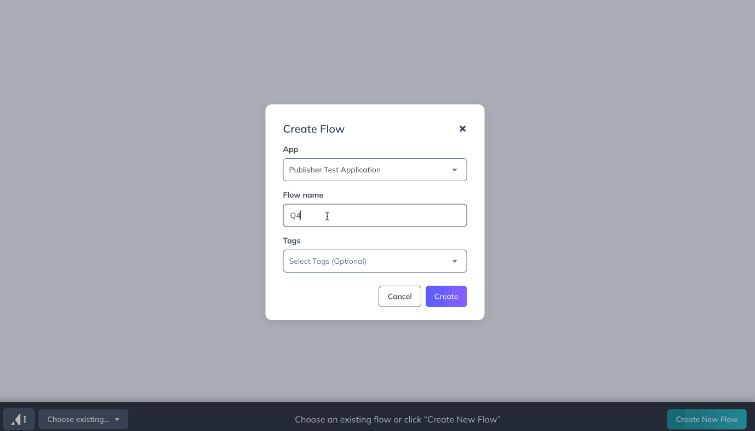
                    Creating a mobile Flow in the builder

                    For the full list of step types, content blocks, and styling options, see Step & content types.

                    Add, delete, clone, and reorder steps

                    • Add — click the green + Add button on the bottom bar and choose a step type. A Carousel step lets users swipe between steps; other step types advance when the user taps a button.
                    Adding a step
                    • Reorder — drag and drop steps into the order you want.
                    • Delete — click Delete in the sidebar when viewing a step's settings.
                    • Clone — click Clone in the sidebar to duplicate a step with its contents and styling.
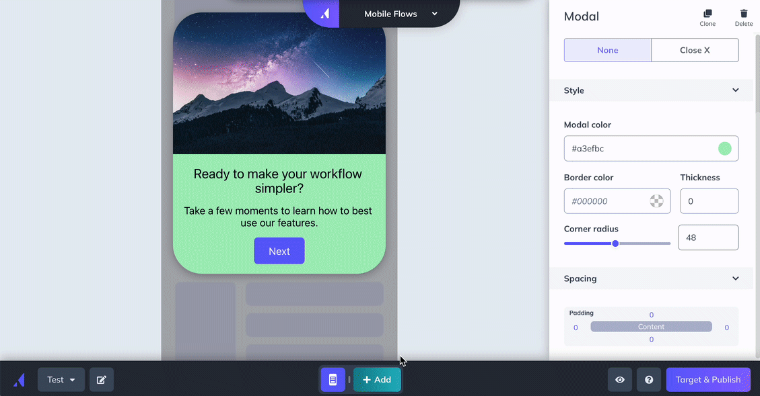
                    Step controls in the sidebar

                    Undo and redo changes

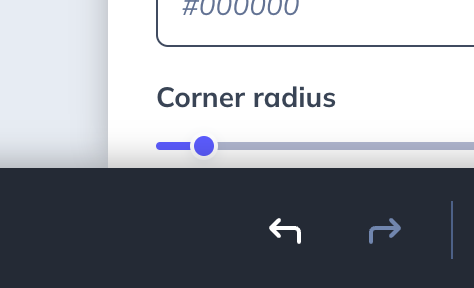
                    The mobile builder supports session-based undo/redo. Refreshing the page clears the history, and undo/redo isn't available in the web builder.

                    The undo/redo buttons appear in the lower right, next to the preview and publish controls.
                    Confirm it worked

                    • Your Flow appears in Experiences > Flows with the steps you added.
                    • Preview the Flow on a device or simulator to see the steps render before you publish.

                    If you can't preview or publish

                    • The preview or publish button is unavailable. SDK installation isn't complete. Finish installing the Appcues Mobile SDK, then reopen the Flow.
                    • The Flow doesn't appear on your device. Confirm it's published and targeted correctly, and check Preview Mobile Flows and Troubleshoot Mobile Flows.
                    • Still stuck? Collect the Flow URL from Studio, the affected User ID, your app and SDK version, and a screen recording, then contact support.
                    flow design mobile construction mobile flows mobile builder

                    Was this article helpful?

                    Yes
                    No
                    Give feedback about this article

                    Related Articles

                    • Mobile Modals and Slideouts
                    • Target and Publish Mobile Flows
                    • Manage Mobile Flows and Analytics
                    Appcues logo

                    Product

                    Why Appcues How it works Integrations Security Pricing What's new

                    Use cases

                    Appcues Integration Hub User Onboarding Software Feature Adoption Software NPS & Surveys Announcements Insights Mobile Adoption

                    Company

                    About
                    Careers

                    Support

                    Developer Docs Contact

                    Resources

                    The Appcues Blog Product Adoption Academy GoodUX Case studies Webinar Series Made with Appcues

                    Follow us

                    Facebook icon Twitter icon grey Linkedin icon Instagram icon
                    © 2022 Appcues. All rights reserved.
                    Security Terms of Service Privacy Policy

                    Knowledge Base Software powered by Helpjuice

                    Expand