Create a Mobile Survey Without Code
Build a mobile rating survey and trigger follow-ups from the response.
Table of Contents
Appcues Mobile lets your team build experiences and surface them directly in your iOS and Android apps. Use mobile surveys to gather feedback and reduce churn, no developer required. This guide shows you how to create a mobile survey without code. For the full survey block reference, see Mobile Surveys.
Prerequisites
- Appcues Mobile is installed in your app. If you need to set it up, see Mobile Overview.
Step 1. Create a rating question
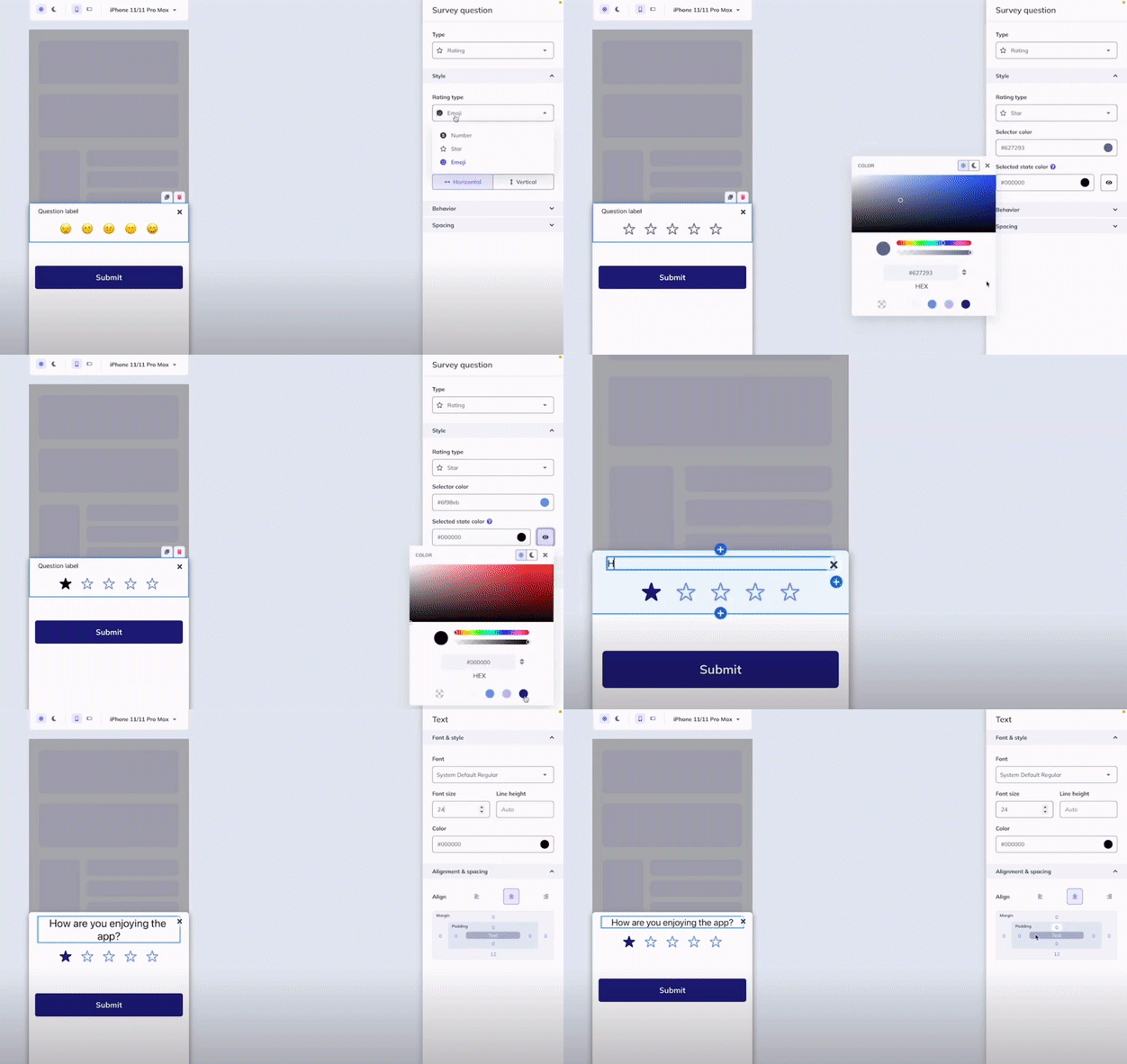
In the mobile builder, create a rating survey to gather feedback about your app. You can choose from three rating types:
- Stars
- Numbers
- Emojis
For this example, we'll use a star rating. We changed the selector color to match the app's theme and the selected-state color to match the Submit button, and added the question in the text box. You can also change the font type, size, line height, and text color, as well as alignment and spacing.
Step 2. Add logic to trigger other content
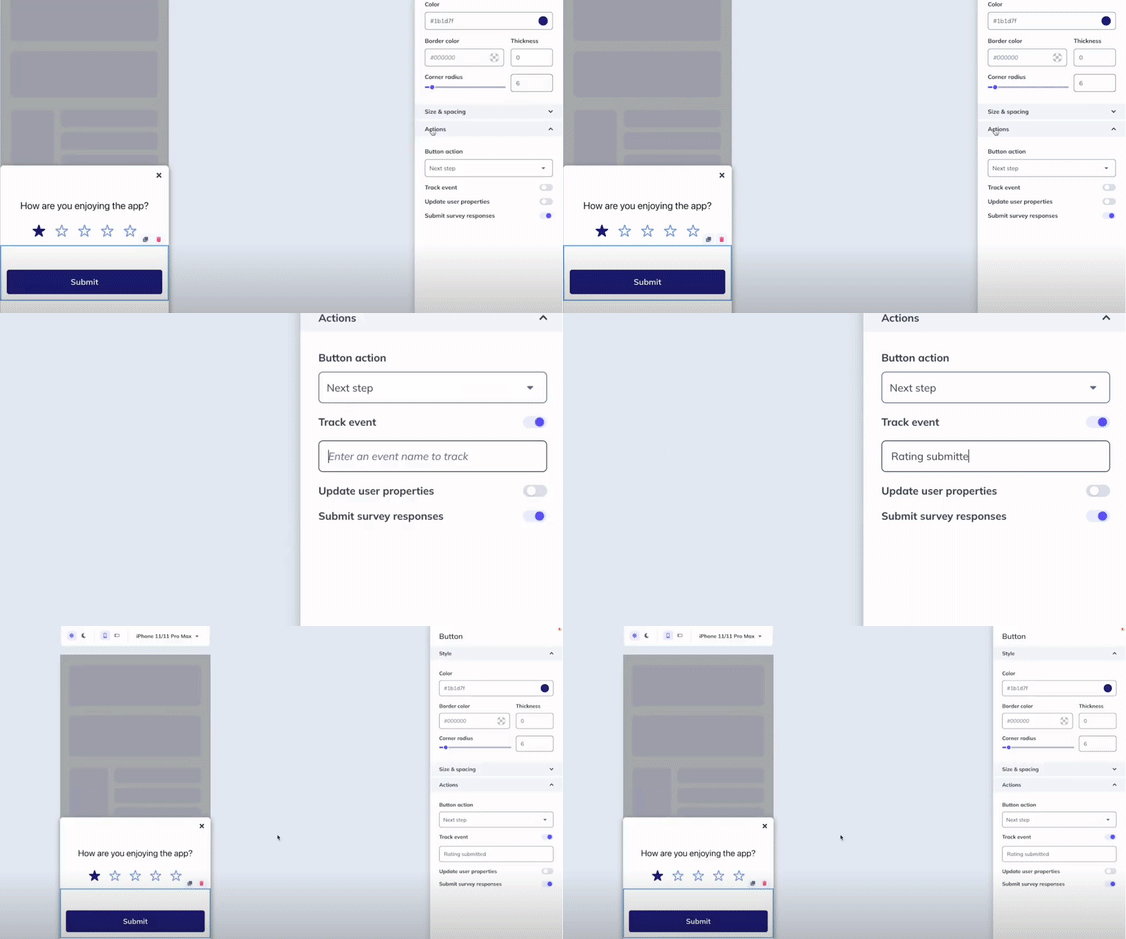
Click the Submit button, then open the Actions dropdown in the sidebar. Toggle Track event on and name the event — for example, "Rating submitted". You'll use this button event to trigger follow-up Flows based on the user's response.
Step 3. Target the survey
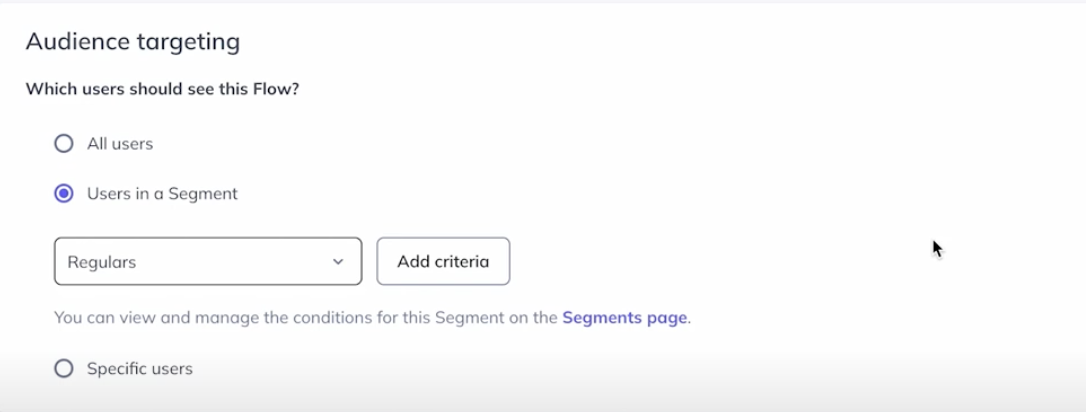
In Audience Targeting, define which users should see the Flow. In this example, we focus on regular users — people who are consistently in the app and know it well enough to give useful feedback.
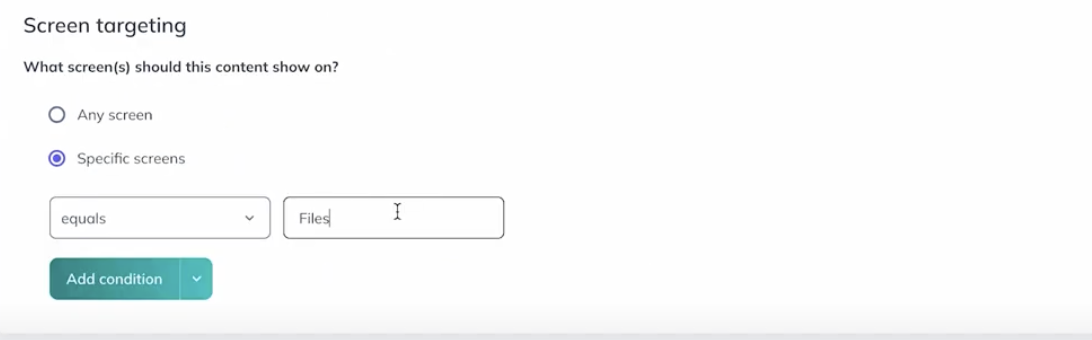
Use Screen Targeting to specify which screens the Flow displays on. We selected the Files screen, where users are most likely to see the value of the app. Then click Publish.
Step 4. Take it further: create follow-up Flows
- For users who submit a 5-star response, create a follow-up Flow to leave a review in the app store. When users tap the rate button, they see a second Flow inviting them to review your app.
- For users who submit 1 or 2 stars, create a Flow that asks for feedback — include a text input block for users to share what you could improve.
View survey results
You can view a list of your form responses directly within the survey Flow's analytics page.
You can also view responses per user by exporting a CSV from the analytics page in your dashboard (open it in Google Sheets, Excel, or similar), or through an integration you've enabled. Our documentation on viewing form and survey results is also a helpful resource.