Relaunch Product/Onboarding Tour with a Button Pin
Discover creative ways to relaunch your onboarding tour and re-engage users with a unique button pin.
Table of Contents
Do you want to provide a way for your users to relaunch a previously completed tour or guide without the use of a launchpad or checklist? Drop in a button pin that is themed perfectly to your application and let Appcues do the magic for you.
Build Guide
This guide is aimed at users who already have an onboarding tour in place, to create one, see Create a Flow.
Step 1: Create a Pin
- In the Appcues App, click Experiences > New experience.
- Select Web, then Pin.
- Enter a Name that says the Pin relaunches a tour, and the URL of the page where the button should go.
- Click Continue. The Chrome extension opens on that page.
Step 2: Add button pin to your application
Click on the + Add button on the bottom area of the builder toolbar when the builder finishes opening.
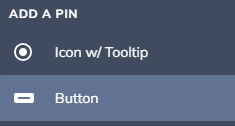
Select Button from the Add a Pin menu.
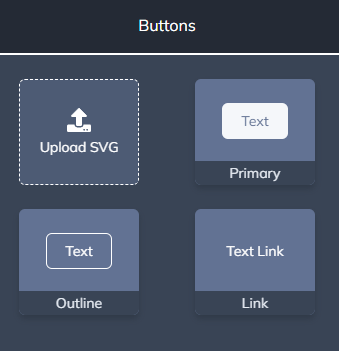
Choose the appropriate style of button that you would like, we currently support SVG, Primary, Outline, and Text links as button types for this experience.
Click on your application where you would like the button to be placed. For additional information on how to place a pin, please refer to this Pins guide.
To match the button to your app, click the Pin experience details button at the bottom of the builder and choose the Theme with the right button colors.
Step 3: Configure button action
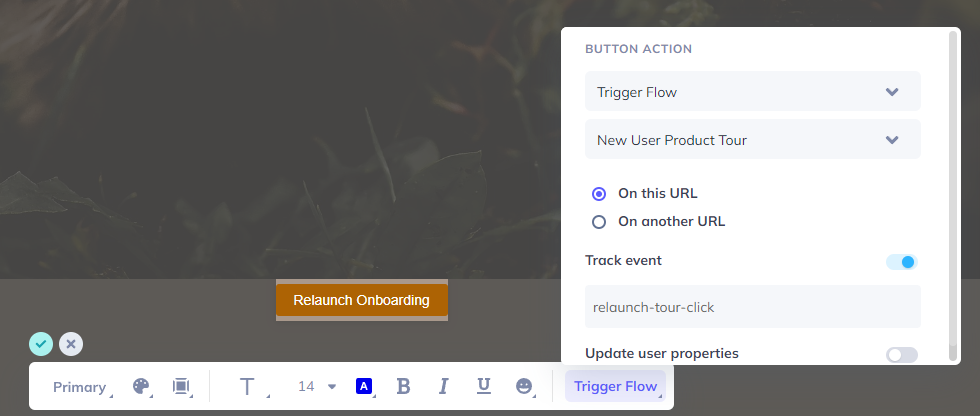
Click on the button and change the Button text label to something clear for your users to know what happens when they click on the button, in this example, we are using “Relaunch Onboarding”.
On the right side of the button toolbar you will want to specify the Trigger Flow button action and choose the Onboarding or Product Tour you wish to be relaunched when a user clicks on the button.
For bonus points, it is also good to track an event when a user clicks this button. The event then shows in each user's activity and can be used in targeting.
Step 4: Publish pin experience
When the button looks right, open the Pin in the Appcues App from Experiences. On its Settings tab, set Who sees this and Where this appears (see Configure an experience's settings), then publish it (see Publish, schedule, and unpublish an experience).
The final step here is to take a moment and test your button to make sure things are displaying and acting as they should.
Here are a few helpful things to consider:
- Does my new button pin feel like it is natively part of the app? (IE. Do the styles match)
- Is the wording on my button clear enough so that users inherently understand what it does?
- Is the button in the best place so users will not have to hunt to find the button?
See it in action
Here are a couple of button pins that will help demonstrate just a bit of what this feature can do for you!