Create Checklist items that can be completed by anyone on an account
Let one person's action check off a Checklist item for their whole account.
Table of Contents
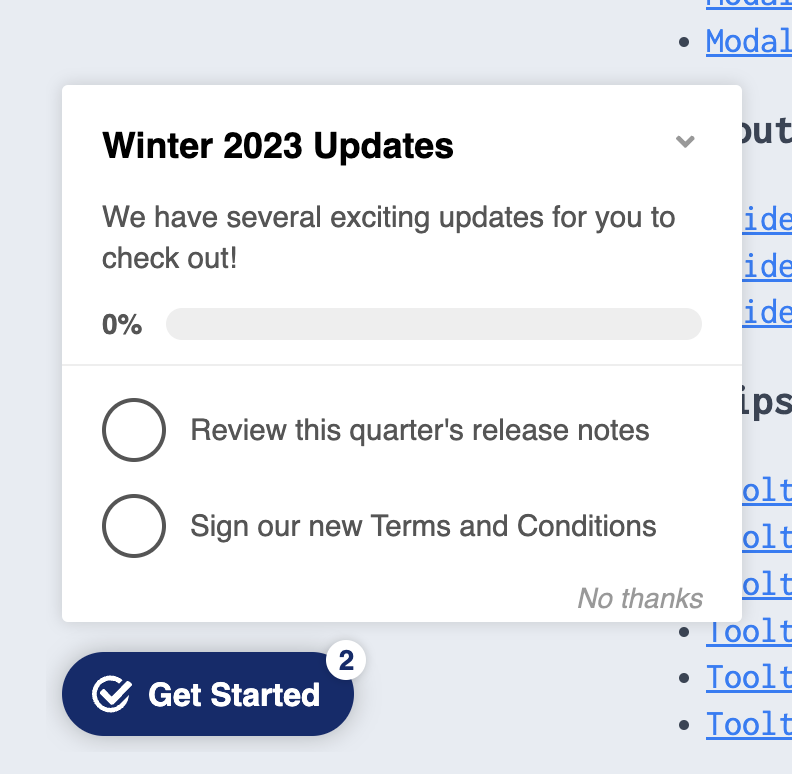
Checklist progress is tracked per user, so by default every user on an account has to complete each item. Some tasks only need doing once per account, such as signing updated terms or connecting an integration. For those, store the result on the account as a group property, and set the item to complete when that property is true. Then everyone on the account sees the item checked off once one person does the task.
Before you start
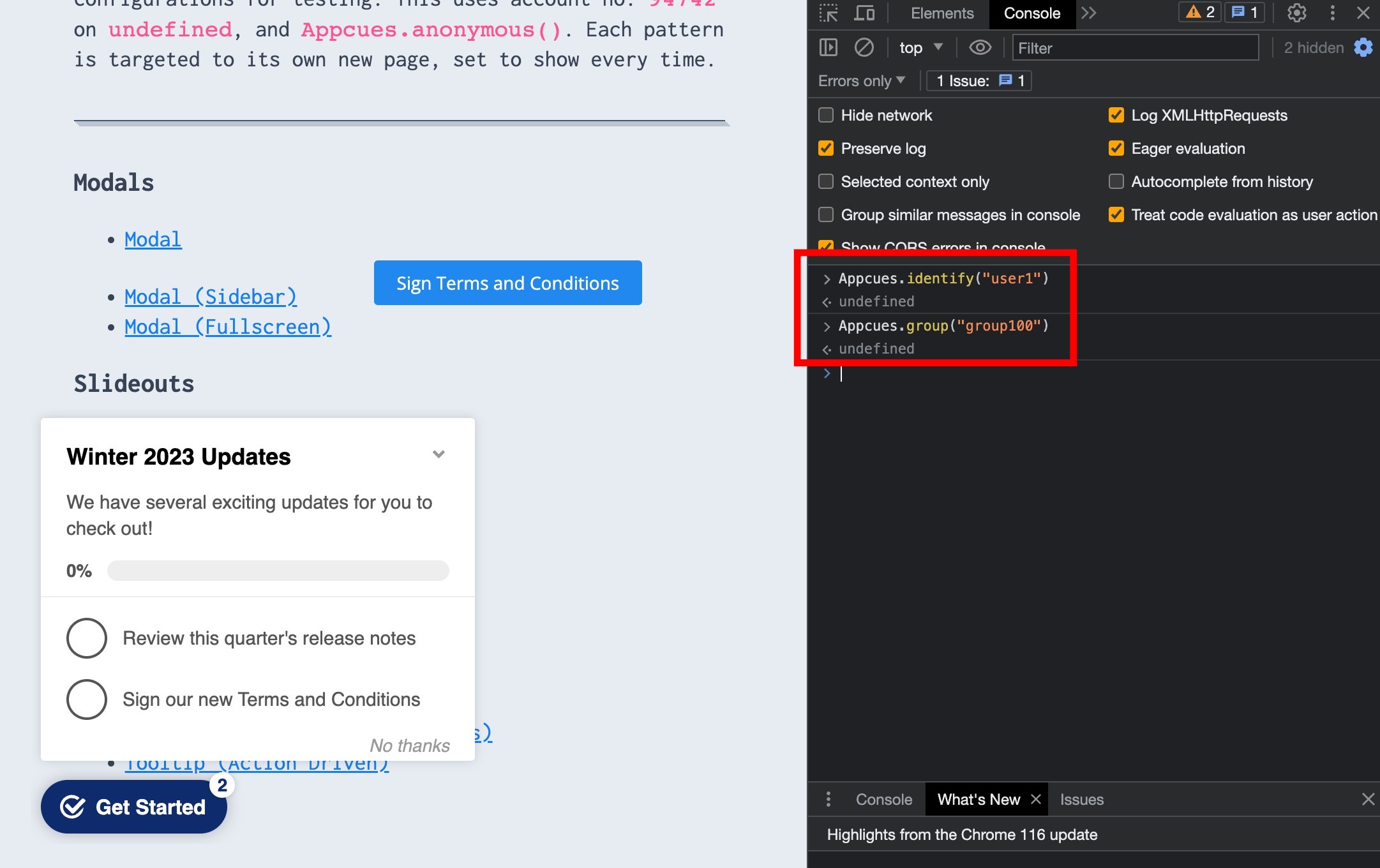
- Your app associates each user with their account by calling
Appcues.group()when the user arrives. Without it, a group property can't check anything off. See Group Properties Overview. - You know which user event means the task is done, such as
TC_signwhen someone signs the terms.
Set a group property when the task is done
When the event happens, set a group property to true on that user's account. Use whichever option fits your setup.
With the Appcues SDK
Have your developers call Appcues.group() with the property when the user completes the task:
Appcues.group(groupId, {
  "signed_terms_and_conditions": true
})
You can also set group properties through Segment, RudderStack, or the public API.
With Zapier, no code
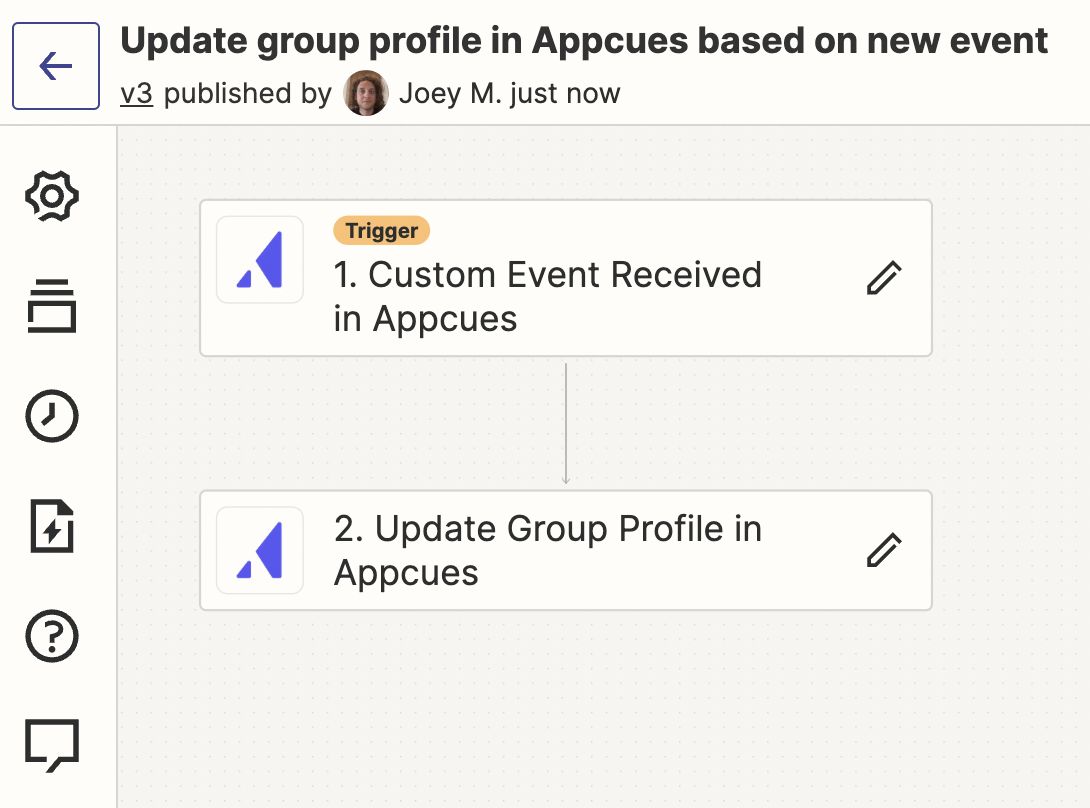
Build a Zap that listens for the Appcues event and sets the group property. See the Zapier integration for setup.
- Set the trigger to Custom Event Received in Appcues and choose your event, such as
TC_sign.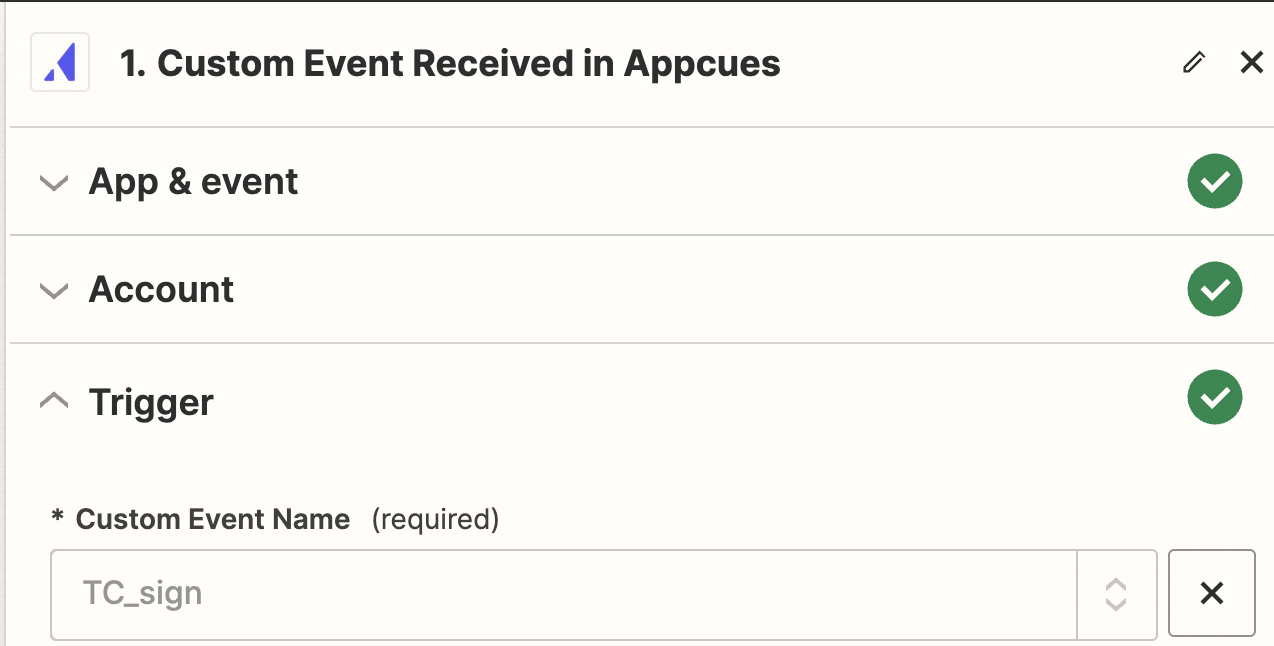
- Set the action to update a group property in Appcues: set
signed_terms_and_conditionstotrueon the Group ID from the user's profile.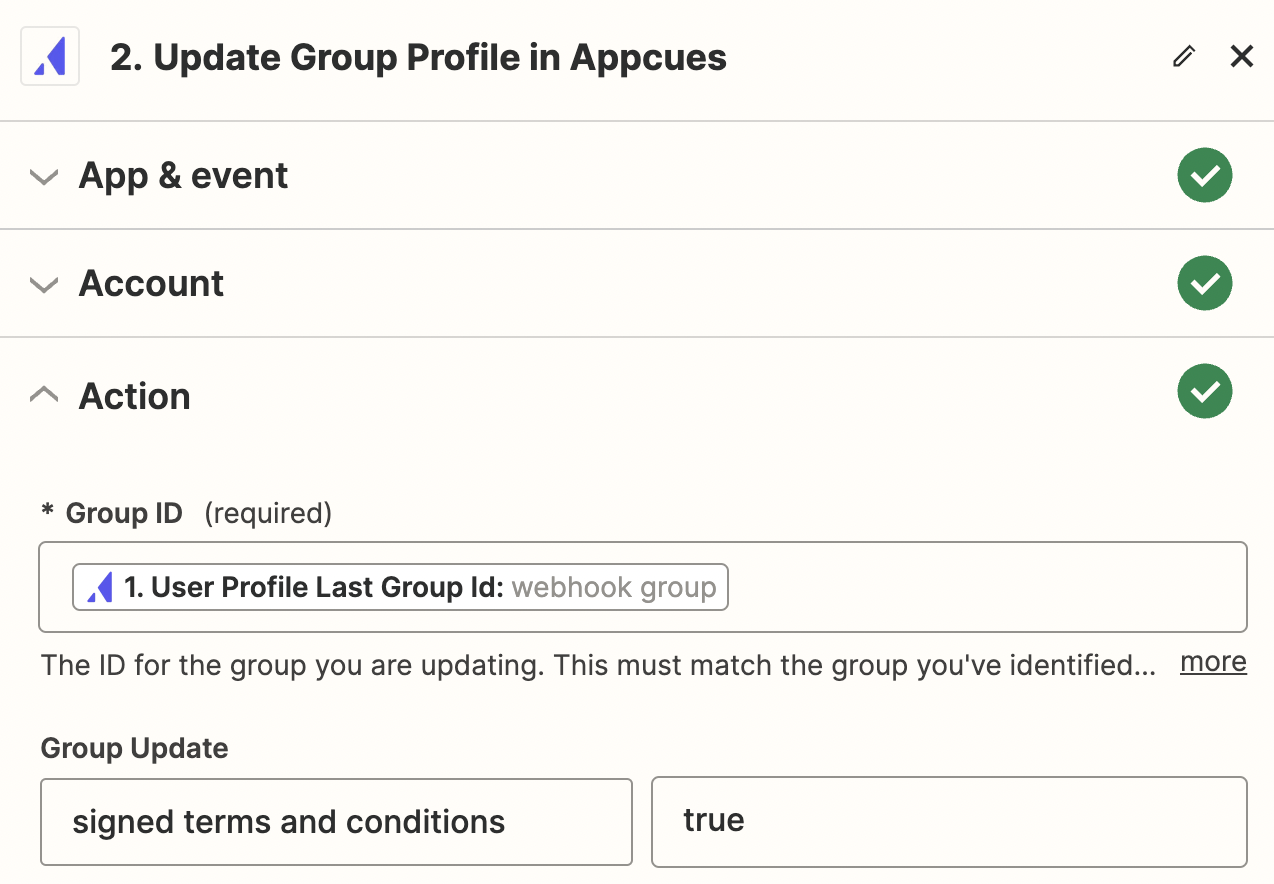
- Turn on the Zap.
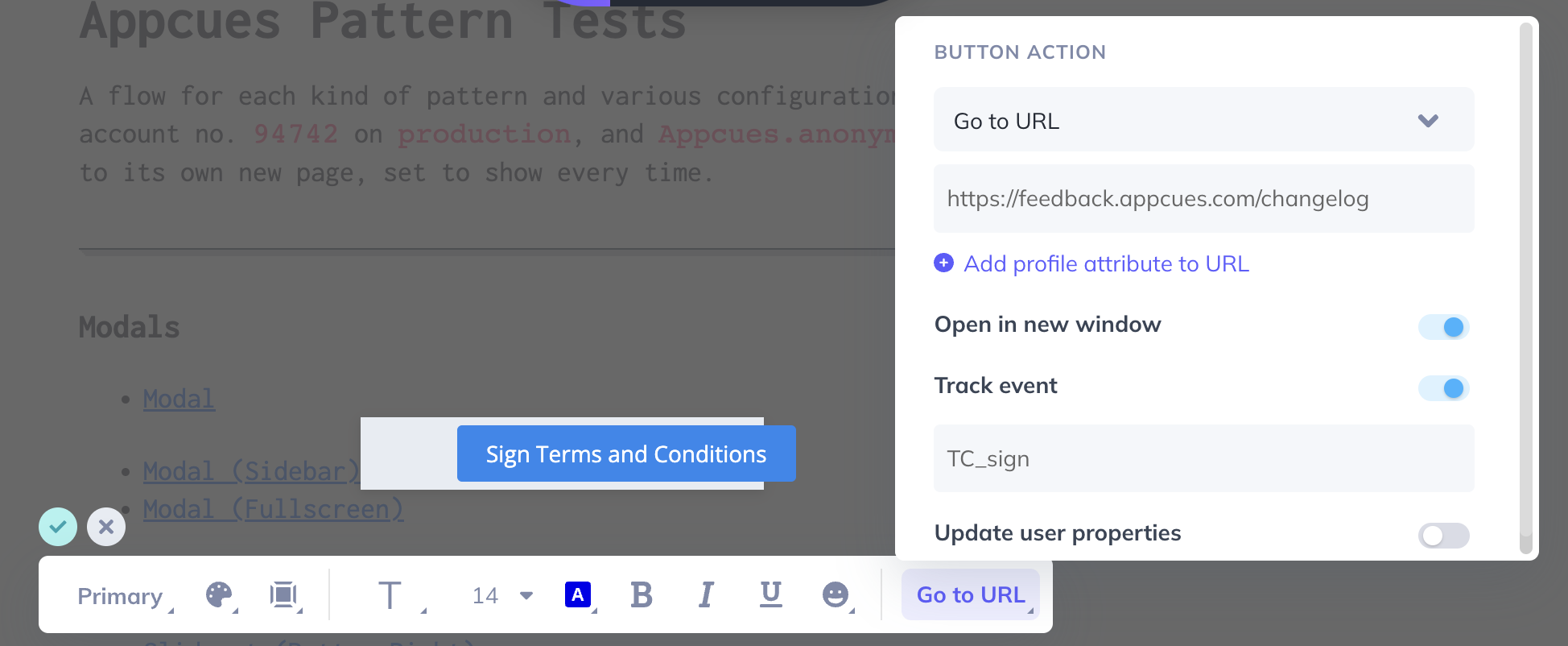
The event can come from anywhere in your app. In this example, a Pin with a button tracks TC_sign when clicked.
Complete the Checklist item from the group property
- Open the Checklist and click the item.
- Under Mark complete when, choose The user matches rules.
- Add a Group Property rule:
signed_terms_and_conditionsequalstrue. - Publish the Checklist. See Create a Checklist.
Confirm it worked
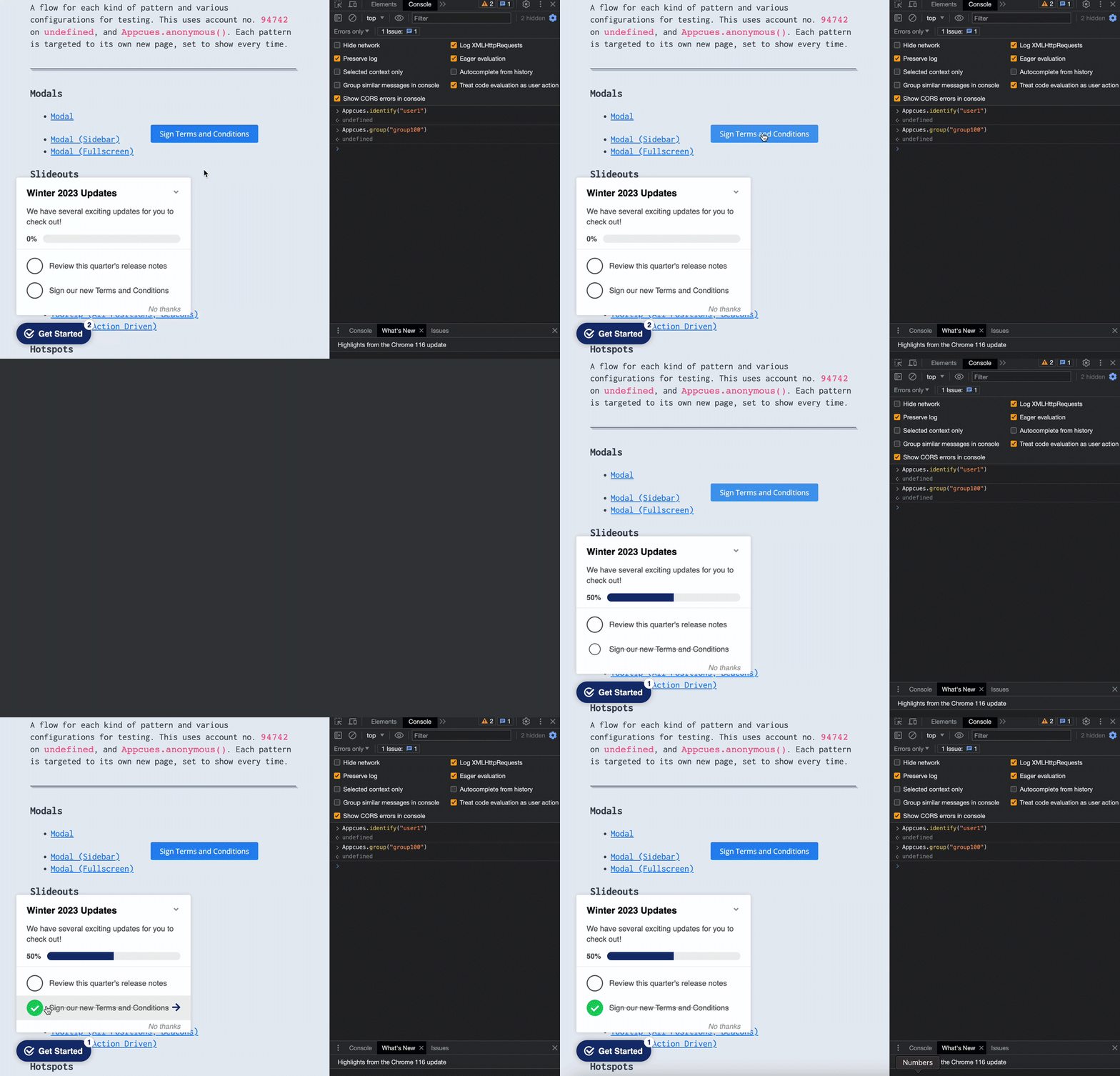
- Sign in as a user on a test account and complete the task. The item checks off once the group property is set.
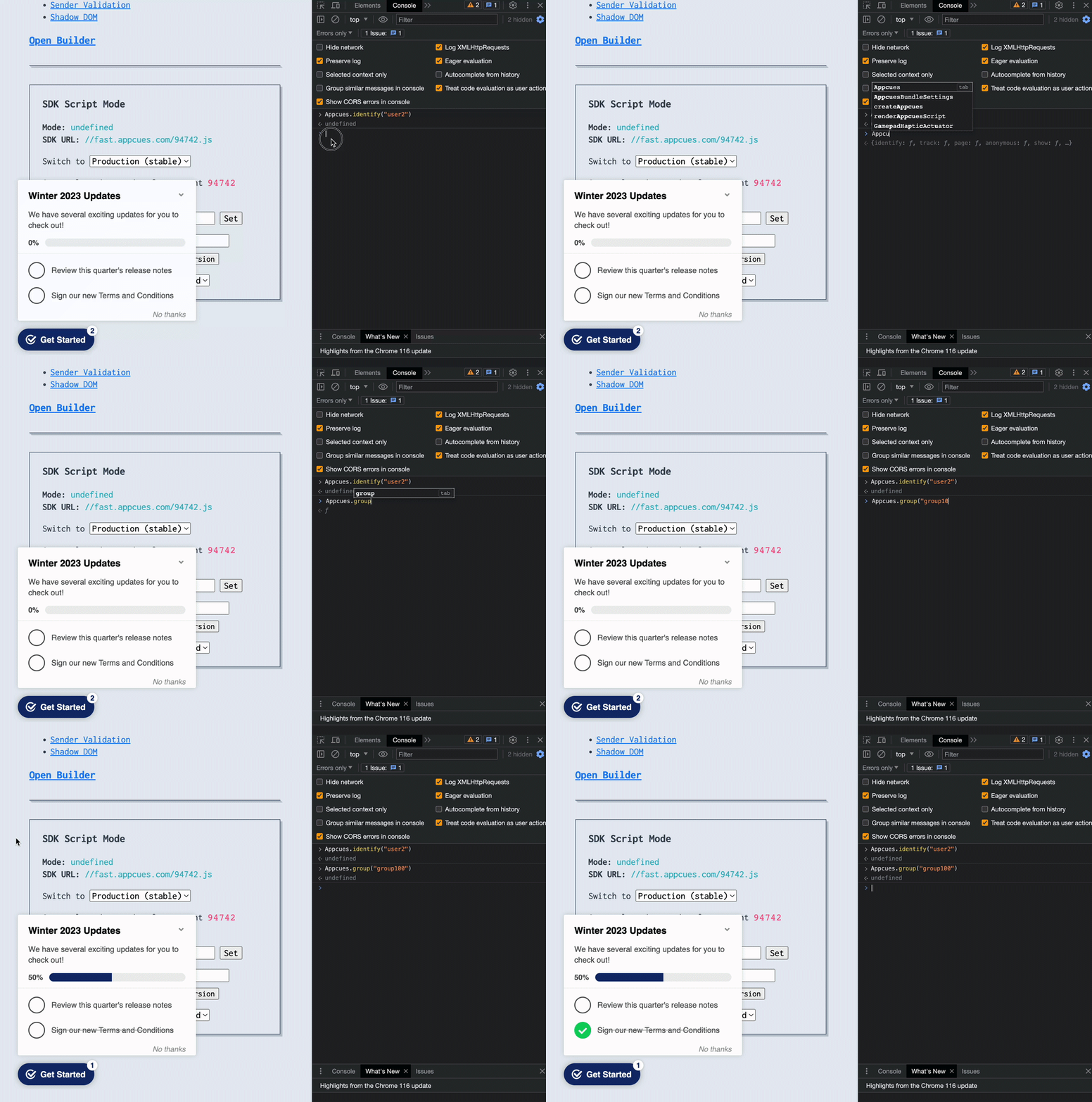
- Sign in as a second user on the same account. The item is already checked off, though this user didn't do the task.
If the item doesn't check off
-
The user isn't linked to an account. Your app must call
Appcues.group()for the user. Open the user in Audiences > Users and check that their account is listed. - The property never arrived. Open the account in Audiences > Accounts and check the property's value. If you use Zapier, check the Zap's history for errors.
-
The value doesn't match the rule. Property names and values are case-sensitive, and
"true"sent as text may not match atruerule. Make the rule match exactly what you send.
Still stuck?
Collect the following and contact support:
- The Checklist page's URL.
- The User ID and Group ID of a user whose item didn't check off.
- The group property name and the value you send.
- A screenshot of the item's Mark complete when rule.