Submit Article Requests

Do you have a suggestion for an article you would like to see created?
Feel free to submit this form and add your suggestions to our document board.

Please fill out the contact form below and we will reply as soon as possible.

  • Integration Hub
  • Contact Us
  • Docs home
  • Mobile Experiences
  • Building mobile experiences
  • Use cases

Create Mobile Release Notes

Build an in-app release notes Flow to share what's new — no developer needed.

Updated at July 16th, 2026

Submit Article Requests

Do you have a suggestion for an article you would like to see created?
Feel free to submit this form and add your suggestions to our document board.

Please fill out the contact form with the details about the help content you'd like to see.

  • Home

  • Getting Started

    • Appcues App

      • Installation & Developers

        • Web Experiences

          • Mobile Experiences

            • Workflows

              • Analytics & Data

                • Account Management

                  • Integrations

                    Table of Contents

                    Prerequisites Step 1. Create a new Flow Step 2. Add header text Step 3. Add an Icon with Text block Step 4. Add buttons Step 5. Target and publish Confirm it worked If the release notes don't appear

                    Appcues Mobile lets your team build experiences and surface them directly in your iOS and Android apps. Use release notes to share what's new in your app. This guide shows you how to build mobile release notes, no developer required.

                    Prerequisites

                    • Appcues Mobile is installed in your app. If you need to set it up, see Mobile Overview.

                    Step 1. Create a new Flow

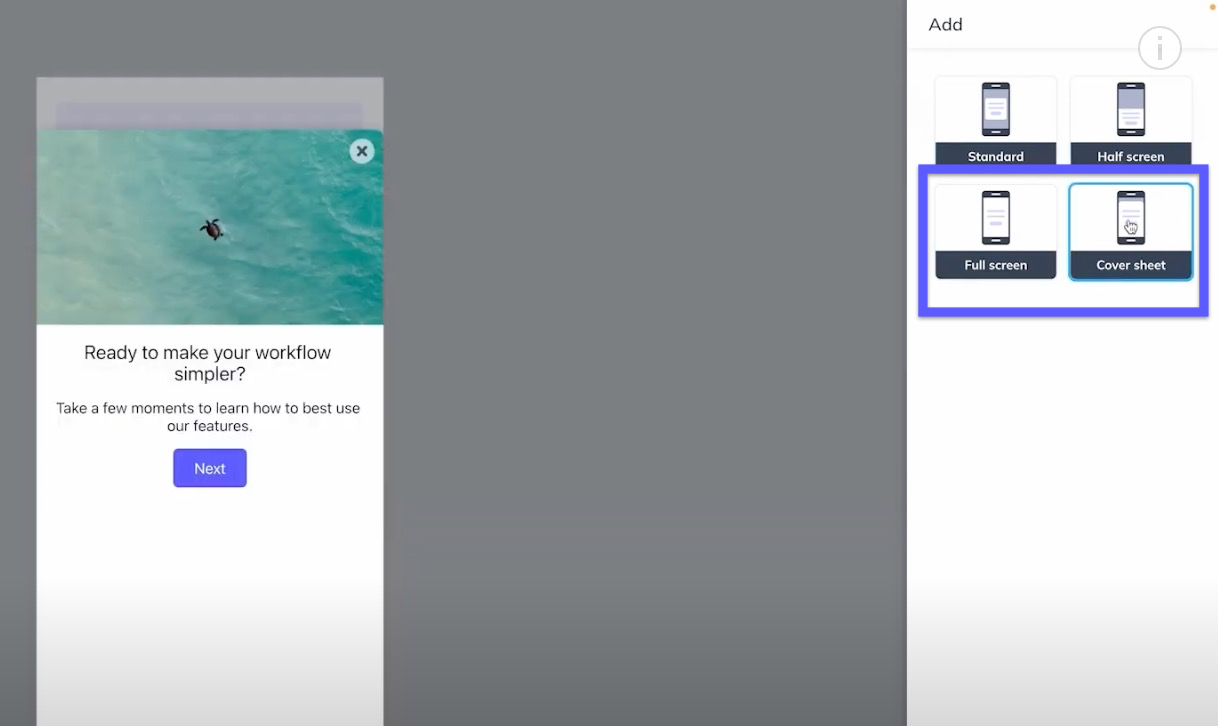
                    In the mobile builder, create a new Flow for your app. For release notes, we recommend a Full Screen or Cover Sheet Modal to grab your users' attention.
                    Step 2. Add header text

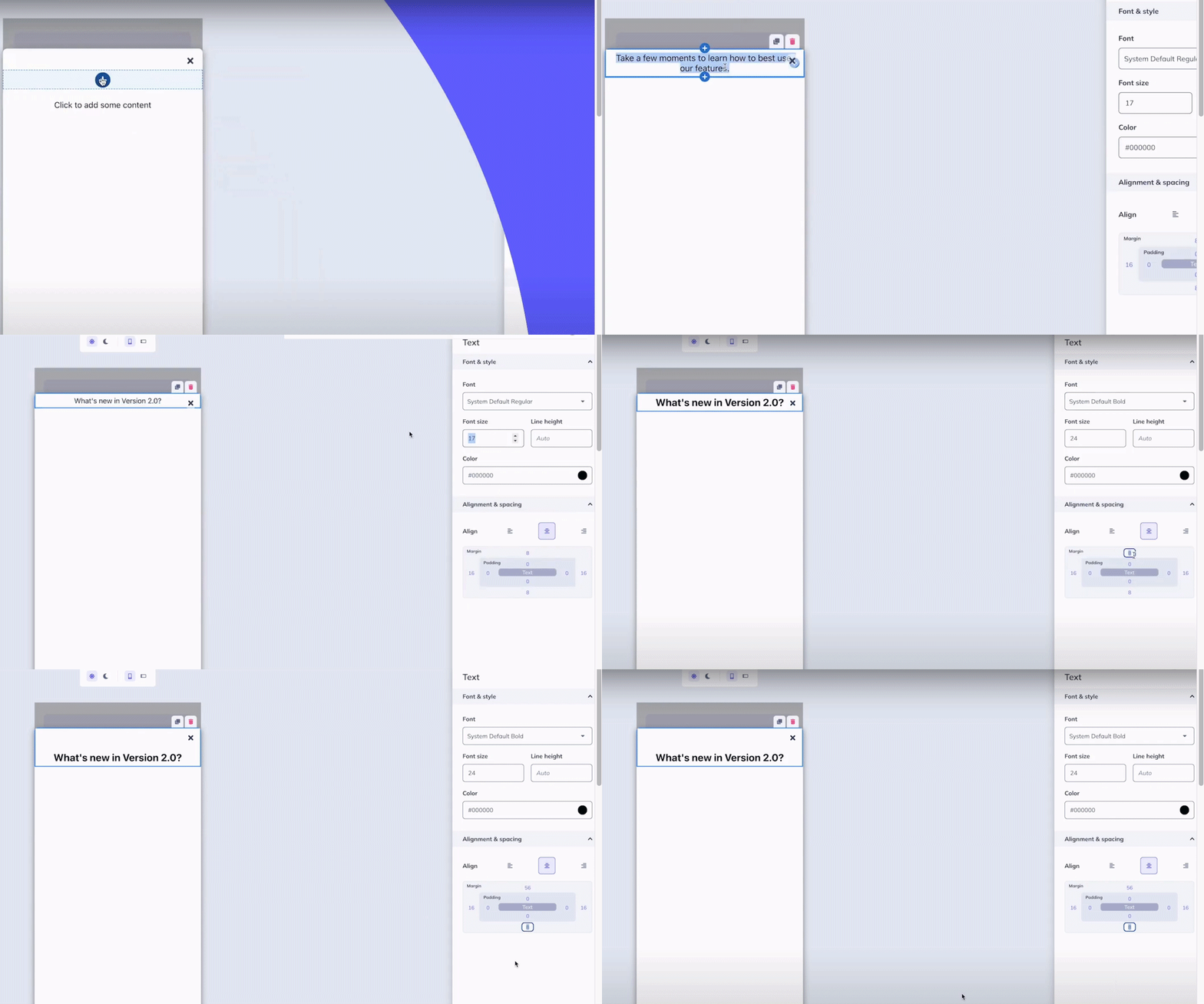
                    Add a header — for example, "What's new in Version 2.0?" — and adjust the heading font size to be big and bold. Add some padding so there's space before your list begins. Then upload your icon; the image can be an SVG or PNG file.
                    Step 3. Add an Icon with Text block

                    The Icon with Text block offers a layout with a subheading for your update and subtle subtext to describe it. Adjust alignment, margins, and padding to get the ideal layout.
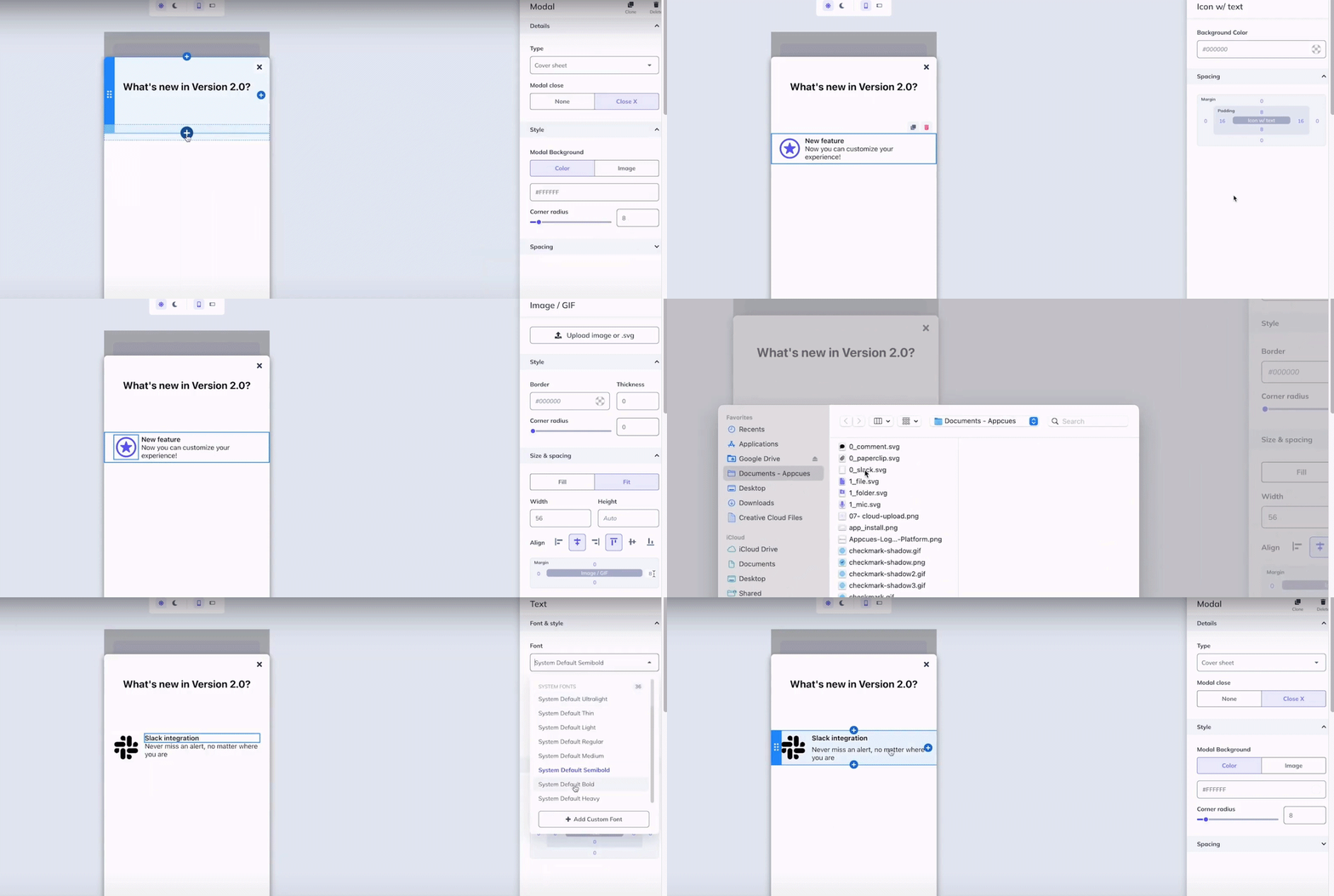
                    Pro tip: Once the styling and formatting are ideal, hover over the Icon with Text block and select the copy button to clone it as many times as needed. Update the text and icon images for each — this gets release notes to your users faster.

                    Step 4. Add buttons

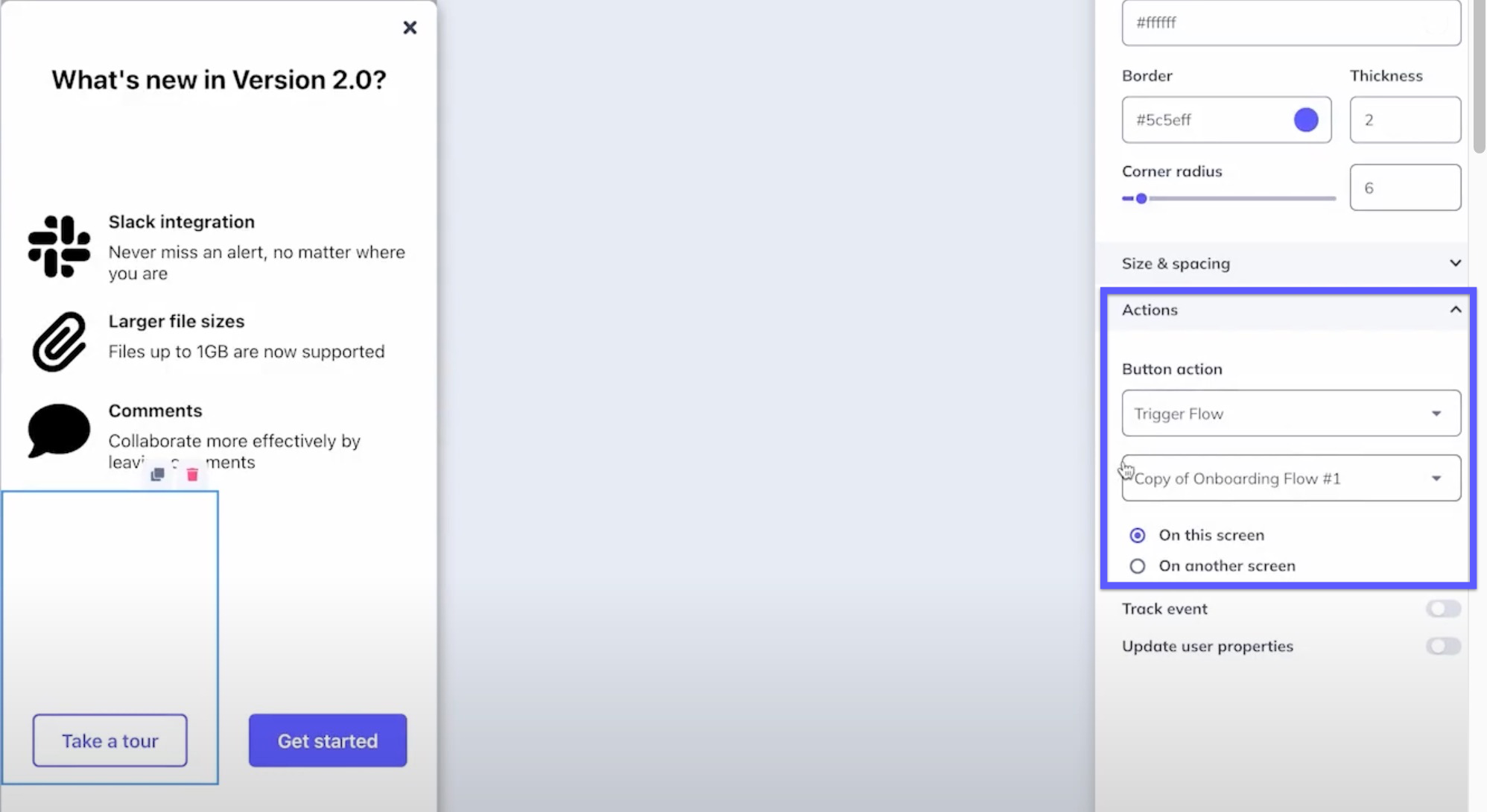
                    With your list of feature updates complete, add two buttons — one to take a tour of what's new, and one to explore on their own.

                    Buttons can display side by side and toward the bottom of the Modal, leaving some space after the release notes. In this example, we expect most users to explore on their own, so Get started is the primary button and Take a tour is secondary (the inverse color of the primary button), triggering another mobile Flow.

                    Customize your release notes — use a solid color or upload an image file for the background.
                    Step 5. Target and publish

                    Review your settings and target the Flow, then click Publish. Your release notes are now in the hands of your users. For details on targeting options, see Target and Publish Mobile Flows.

                    Confirm it worked

                    • The Flow shows as published on its settings page.
                    • On a device that matches your targeting, the release notes Modal appears at the trigger you set.

                    If the release notes don't appear

                    • Confirm the Flow is published and the test device matches your targeting.
                    • See Target and Publish Mobile Flows and Troubleshoot Mobile Flows.
                    release notes mobile notes

                    Was this article helpful?

                    Yes
                    No
                    Give feedback about this article

                    Related Articles

                    • Create a Mobile Survey Without Code
                    • Request a Store Rating
                    Appcues logo

                    Product

                    Why Appcues How it works Integrations Security Pricing What's new

                    Use cases

                    Appcues Integration Hub User Onboarding Software Feature Adoption Software NPS & Surveys Announcements Insights Mobile Adoption

                    Company

                    About
                    Careers

                    Support

                    Developer Docs Contact

                    Resources

                    The Appcues Blog Product Adoption Academy GoodUX Case studies Webinar Series Made with Appcues

                    Follow us

                    Facebook icon Twitter icon grey Linkedin icon Instagram icon
                    © 2022 Appcues. All rights reserved.
                    Security Terms of Service Privacy Policy

                    Knowledge Base Software powered by Helpjuice

                    Expand