Embed videos in experiences
Add a YouTube, Vimeo, or Wistia video to a Flow or Embed step.
Table of Contents
Add a video from YouTube, Vimeo, Wistia, or any host that gives you an embed code. You can't upload video files to Appcues. This article covers Flows 2.0 and Embeds; for legacy Flows, see Using legacy Flows? below. For mobile, see Add Videos to Mobile Flows.
Add a video
- Copy the video's link or its iframe embed code from your video host.
- Open the experience in the builder, select an empty cell, and choose iFrame.
- On the Content tab, paste the link or code into Code or URL. The video appears in the step.

For YouTube, paste the regular video link or a youtu.be share link. Appcues turns it into an embed link and keeps any start time in the link. For other hosts, paste the iframe embed code, or the player URL from inside it, such as https://player.vimeo.com/video/VIDEO_ID. A regular page link from those hosts loads the whole page, not the player.
Get embed codes from popular hosts
Size and space the video
The video fills its cell, so resize the cell to make the video bigger or smaller. See Design step layouts. Any width and height in pasted embed code are ignored.
To add a border, round the corners, or set margins, select the iFrame block and open the Design tab.
Allow full screen
When you paste a link, full screen is allowed automatically. When you paste embed code, make sure the <iframe> tag includes allowfullscreen.
Appcues keeps only the <iframe> tag from pasted code, with these attributes: src, title, allow, allowfullscreen, referrerpolicy, loading, frameborder, and sandbox. Scripts and wrapper <div> tags are dropped. Code with no <iframe> tag, such as Wistia's standard JavaScript embed, isn't accepted, so use the host's iframe embed option instead.
Change or remove a video
Select the iFrame block. To swap the video, paste a new link or code into Code or URL. To remove it, delete the block.
Using legacy Flows?
In the legacy Flow builder, add a video with the Video or HTML component:
- Select the step, click +, and select Video or HTML.
- Paste the iframe embed code. YouTube, Vimeo, and Wistia embed codes work as they are.
- Click Save.

For other hosts, wrap the video URL in an iframe tag:
<iframe src="VIDEO_URL" title="Your Title"></iframe>YouTube embeds don't always allow full screen. Add this inside the <iframe> tag in the HTML component:
allowfullscreen="true" webkitallowfullscreen="true" mozallowfullscreen="true"To make a video fill a Modal edge to edge, wrap the iframe in a <div> with negative margins, and adjust the values to your Modal's size:
<div style="margin-left:-54px;margin-top:-29px">
  <iframe src="YOUR_VIDEO_URL" title="Your video" allow="autoplay; fullscreen" frameborder="0" scrolling="no" allowfullscreen width="650" height="366"></iframe>
</div>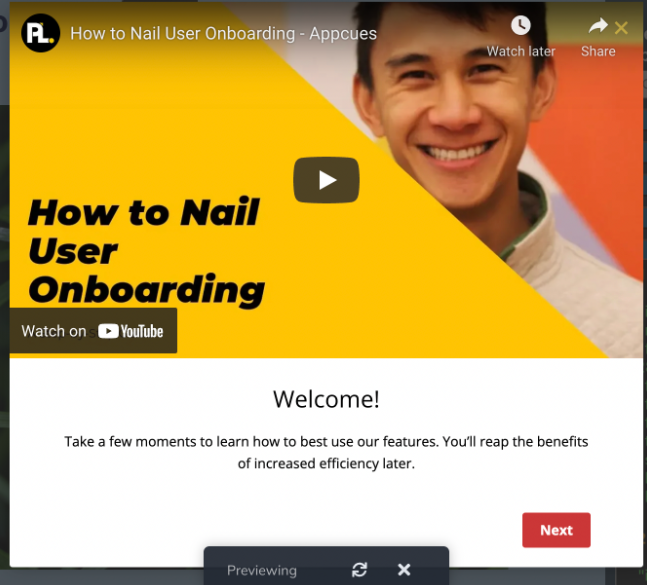
To edit or remove a video, hold Shift and click it in the builder. Replace the embed code, or delete the component.

If a video doesn't render, its embed code may include JavaScript that conflicts with the Flow. Use a plain iframe instead, with your host's direct embed URL:
<iframe src="//fast.wistia.net/embed/iframe/YOUR_VIDEO_ID" frameborder="0" scrolling="no" allowfullscreen width="620" height="349"></iframe>If a video is cut off or has extra white space, change the iframe's width and height to fit your Modal or Slideout.
Confirm it worked
Preview the experience. The player loads in the step and plays. If you allowed full screen, the player shows its full-screen button.
If the video doesn't play
The block stays blank
Check what you pasted. It must be a link, or code that contains an <iframe> tag. If you pasted a regular page link from a host other than YouTube, use the player URL from the host's embed code. If the link or code is right, the host may block embedding (see below).
The host or a Content Security Policy blocks the video
If the block loads but shows a playback error, a blank frame, or a "refused to connect" message, check these two causes:
- Embedding is turned off at the host. Make sure the video allows embedding. On YouTube, check the video's Visibility settings. On Wistia, check the Embed sharing option. On Vimeo, go to Settings > Privacy > Where can this video be embedded? and add your app's domain.
-
Your site's Content Security Policy (CSP) blocks the host. If your app sets a
frame-srcordefault-srcdirective, add the video host to it, for examplehttps://www.youtube.com,https://player.vimeo.com, orhttps://fast.wistia.net. Appcues itself also needshttps://fast.appcues.cominframe-src.
To confirm a CSP problem, open your browser's developer console (F12 > Console) and look for errors that mention frame-src, Refused to frame, or blocked by Content Security Policy. For setup steps, see Configure a Content Security Policy.
If it's still not working
Contact support with the embed code or link you used, the experience's Experience ID (on its Settings tab, in Who changed this), the step number, and a screenshot or screen recording of the problem.