Trigger an Experience from an event
Display a Flow or Embed in response to a user action instead of a page load
Table of Contents
Flows 2.0 (Beta): You can now add a presentation delay before a step appears — for example, to wait for the page to finish loading, or to hold a step until 30 seconds in. See Build Flows 2.0 Experiences.
Show an Appcues Flow or Embed immediately after a specific event occurs in your app — instead of waiting for a page load.
This feature is only supported in Flows and Embeds.
This feature is available on select plans and may be offered as an add-on. Contact our team at support@appcues.com for more information.
Prerequisites
- The Appcues SDK is installed in your application.
- At least one event is being sent to Appcues, either through application code or a Click-to-Track event.
- The event does not cause a page change. The event and the triggered Experiences must occur within the same URL context (see below).
How event triggering works
By default, Appcues evaluates whether to show an Experience each time a page loads. Event triggering changes that — it displays an Experience the moment a specific event fires, regardless of page navigation.
This is useful when you want to respond to a user action in real time, like showing a contextual message right after someone clicks a button or completes a task.
Important: Event triggering only works if the event fires without causing a page change. The event and the Experience must occur in the same URL context. If the event also navigates the user to a different page, the SDK reloads and the triggered Experience will not display. In that case, use standard page-load targeting on the destination page instead.
Event triggering vs. event targeting: Triggering shows a Experience when an event happens. Targeting filters the audience based on whether an event has occurred in the past. For a full comparison, see Event Triggering vs Event Targeting.
Send events to Appcues
Event triggering requires that the event is sent to Appcues client-side. There are two ways to do this.
Application events
Add an Appcues.track() call wherever the event occurs in your code. Event attributes are optional:
Appcues.track('event name', { event attributes (optional) });
After the first instance fires, the event appears on your Events and properties page in Appcues. See the developer installation guide for more on sending events.
Click-to-Track events
Use Click-to-Track to define events visually — no code required.
- Navigate to the page in your app where the event should fire.
- Open the Appcues Extension and select Track Events.
- Select the element to track, name the event, and test it.
For detailed steps, see Click-to-Track Events.
Set up event triggering on a Experience
- Open your Experience and go to Settings.
- Find the Trigger section.
- Select When an event occurs.
- Choose the event name from the dropdown. When a user performs that action, Appcues receives the track call and shows the Experience immediately.

Filter by event attributes
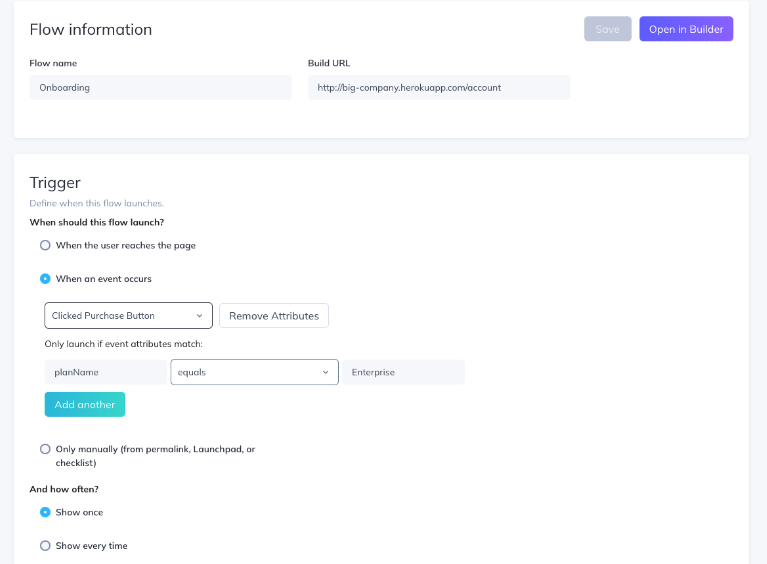
Use event attributes to trigger an Experience only when specific conditions are met on the event. For example, you might track all Clicked Purchase Button events but only trigger an Experience when the planName attribute equals Enterprise.
Here's how the event would be sent:
Appcues.track('Clicked Purchase Button', { planName: "Enterprise", buttonColor: "red" });
See Appcues.track() for full details on sending events with attributes.
To configure attribute filters:
- In the Trigger section of your Experience settings, select the event.
- Add attribute conditions below the event name. Type the attribute name and value manually — no dropdown is provided.
- Use operators like
equals,contains, ordoes not containto define the match.
Note: You must type the attribute name and value exactly as they appear in your track call. Appcues does not auto-populate these fields.
Combine event triggering with other targeting
Event triggering works alongside other targeting conditions:
- Page targeting: Restrict the Experience to specific pages even when the event fires globally. See Page Targeting.
- Audience targeting: Limit the Experience to specific user segments. See Audience Targeting.
For example, you could trigger an Experience on a Clicked Upgrade event, but only show it to users on the pricing page who are admins.

Use event triggering with Segment
Event triggering requires a client-side Segment installation — events sent from a back-end server will not trigger Experiences.
Supported setups
- Segment loads the Appcues SDK on your webpage, and you call
Appcues.track("event!")for events. - The Segment–Appcues integration is enabled, and you call
Analytics.track("event!")from client-side code.
Unsupported setup
- Events are sent to Segment server-side using one of their server-side libraries.
For more on the difference, see Segment's guide to client-side vs. server-side tracking.
Confirm it worked
- Perform the tracked action in your app. The Experience appears immediately after the event fires.
- Check the Events and properties page to verify the event is being received.
- If using attribute filtering, confirm the attribute name and value in your track call match what you entered in the Experience's trigger settings.
Common questions
Can I use event attributes in event targeting?
No. Event attributes are used for triggering only. Appcues does not store nested event attributes, so they can't be referenced in audience targeting conditions. You can, however, use the event itself (without attributes) for targeting. See Events overview.
Does an event-triggered Flow interrupt other Experiences?
Yes. An event-triggered Flow takes priority over any other Flow — including one currently being displayed. A Flow that gets dismissed because of an event-triggered Flow will not reappear unless its targeting conditions are specifically configured for re-display.
Can I trigger one Experience from multiple events?
No. A Experience can only be triggered by a single event. To trigger the same content from different events, clone the Experience and set a different event trigger on each copy.
Why doesn't my event-triggered Experience appear?
The most common cause is that the event also triggers a page change. Event triggering requires that the user stays on the same page (same URL context) when the event fires. If the action navigates to a new URL, the SDK reloads and the Experience never displays. Use standard page-load targeting on the destination page instead.
If it's still not working
Collect the following and contact support@appcues.com:
- The Experience ID and URL where the event should trigger
- The user ID of the user having issues
- The exact event name and any attribute key/value pairs from your track call
- Whether your installation is client-side or server-side (Segment installations)
- Whether the event causes a page change (event triggering requires the event and Experience to occur on the same page)
- A screenshot or screen recording showing the issue