Embed a Video in a Flow
Add video walkthroughs, tutorials, or product demos directly inside your Flows.
Table of Contents
Add a hosted video to any Flow step using the video or HTML component. Videos must be hosted on a service like YouTube, Vimeo, or Wistia — you can't upload video files directly to Appcues.
Prerequisites
- A published or draft Flow with at least one step
- A video embed code (iframe) from your hosting service
Add a video
- Open your Flow in the Builder and select the step where you want the video.
- Click the + button to add a new component, then select Video or HTML.
- Paste the iframe embed code from your video hosting service. Appcues natively supports embed codes from YouTube, Vimeo, and Wistia.
- Click Save.

For other video services, wrap the video URL in a manual iframe tag:
<iframe src="VIDEO_URL" title="Your Title"></iframe>Tip: If the embed doesn't render, try a fallback iframe embed with minimal JavaScript. See the troubleshooting section below.
Get embed codes from popular services
Enable full-screen mode for YouTube videos
YouTube embeds don't always include the full-screen attribute by default. Add this snippet inside the <iframe> tag in the HTML component:
allowfullscreen="true" webkitallowfullscreen="true" mozallowfullscreen="true"Remove side and top margins
To make a video fill a Modal edge-to-edge (no padding around it), wrap the iframe in a <div> with negative margins. Adjust the margin values to match your Modal size:
<div style="margin-left:-54px;margin-top:-29px">
  <iframe src="YOUR_VIDEO_URL" title="Your video" allow="autoplay; fullscreen" frameborder="0" scrolling="no" allowfullscreen width="650" height="366"></iframe>
</div>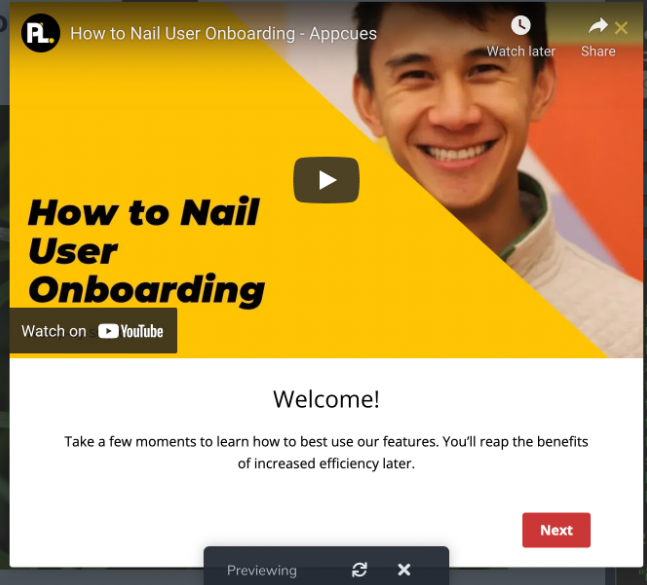
Edit or remove a video
- Hold Shift and click the video in the Builder. The component becomes editable.
- Replace the embed code to swap the video, or delete the component to remove it.

Confirm it worked
- Preview the Flow. The video player loads and plays within the step.
- If you enabled full-screen mode, the expand button appears on the player controls.
Troubleshooting
Video doesn't render in the Flow
Some embed codes include JavaScript that conflicts with the Flow container. Use a minimal iframe fallback instead:
<iframe src="//fast.wistia.net/embed/iframe/YOUR_VIDEO_ID" frameborder="0" scrolling="no" allowfullscreen width="620" height="349"></iframe>Replace the src URL with the direct embed URL from your video service.
Video is cut off or has extra whitespace
Adjust the width and height attributes on the iframe to match your Modal or Slideout dimensions. For edge-to-edge video, use the negative-margin wrapper shown above.
Video is blocked by the hosting service or Content Security Policy (CSP)
If the video iframe loads but shows a playback error, a blank frame, or a "refused to connect" message, the issue is usually one of these:
- Embedding is disabled at the source. Some videos are set to restrict embedding or limit it to specific domains. Check your video hosting settings and make sure embedding is allowed. On YouTube, this is under the video's Visibility settings. On Wistia, check the Embed sharing option. On Vimeo, go to Settings > Privacy > Where can this video be embedded? and add your app's domain.
-
Your site's Content Security Policy (CSP) blocks the video domain. If your application uses a CSP
frame-srcordefault-srcdirective, the browser blocks iframes from domains that aren't explicitly allowed. Add the video host domain to your CSPframe-srcallowlist — for example,https://www.youtube.com,https://player.vimeo.com, orhttps://fast.wistia.net. You also needhttps://fast.appcues.comin yourframe-srcdirective for Appcues itself to render.
Open your browser's developer console (F12 > Console tab) and look for errors that mention frame-src, Refused to frame, or blocked by Content Security Policy. These confirm a CSP issue.
For a full walkthrough on configuring CSP for Appcues, see Configure a Content Security Policy.
If it's still not working
Collect the following and contact Appcues Support:
- The embed code you're using
- The Flow ID and step number
- A screenshot or screen recording of the issue