Set Flow Frequency
Learn how to define how often your flows should show up to your users.
Table of Contents
Control how often a Flow shows to the same user — once, a fixed number of times, on a recurring schedule, or until completed.
How frequency works
Flows 2.0 (Beta): The most common frequency choices are now simple options on the Flow's settings page — Show X times and Show until completed — instead of building conditions by hand. Where 2.0 differs from legacy Flows, it's flagged below.
Every Flow has a frequency setting and, optionally, audience conditions that refine it further. Together they answer two questions:
- Frequency setting → "Should this Flow repeat at all?" (found in the Trigger section)
- Audience conditions → "Under what conditions should it repeat?" (found in the Audience section)
The frequency setting has only two options:
- Show once — the Flow shows one time per user and never again.
- Show every time — the Flow shows every time the user qualifies. Use this when you want to add conditions that control how many times or how often it repeats.
Manual triggers override frequency. If your Flow is set to show via permalink, Checklist, or button (Show manually trigger), frequency settings are removed. The Flow shows each time the trigger fires.

Set up a repeating frequency
To show a Flow more than once under specific conditions, start by setting the frequency to Show every time, then add audience conditions to control the repetition.
Show a Flow a fixed number of times
Use this when you want a Flow to appear exactly X times — for example, showing an announcement 3 times before stopping.
- In the Trigger section, select Show every time.
- Scroll to Audience, select Specific users.
- Add a condition: Flow → (select this Flow) → has not been completed/seen → at least [X] times previously.
The Flow keeps showing until the user has seen or completed it the specified number of times, then stops.
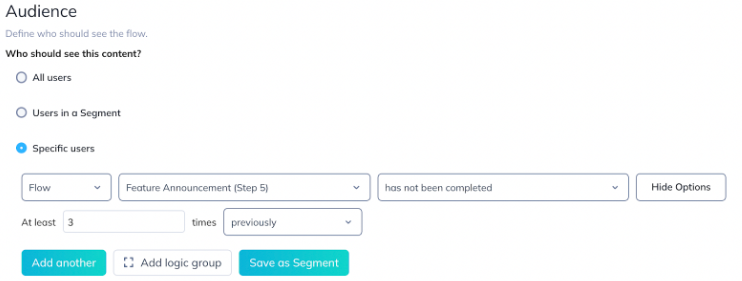
Flows 2.0: Use the Show X times option on the settings page — you don't need to build this in the conditions editor.

Show a Flow on a recurring schedule
Use this to space out how often a user sees a Flow — for example, once every 14 days.
- In the Trigger section, select Show every time.
- Scroll to Audience, select Specific users.
- Add a condition: Flow → (select this Flow) → has not been seen → in the last [X] days.
The Flow reappears only after X days have passed since the user last saw it.

Show a Flow until the user completes it
Use this for multi-step Flows that you want to keep surfacing until the user finishes — for example, a setup wizard with several Tooltip steps.
- In the Trigger section, select Show every time.
- Scroll to Audience, select Specific users.
- Add a condition: Flow → (select this Flow) → last step → has not been completed.
Using the last step as the condition ensures the Flow keeps appearing until the user reaches the end.

Flows 2.0: Use the Show until completed option on the settings page.

How "show once" is tracked on step type
Legacy Flows only. Flows 2.0 defines "started" and "completed" at the experience level, so completion no longer depends on whether a step is a Modal or a Tooltip.
What counts as "shown" depends on the step type that starts the Flow:
| First step type | What counts as "shown" | UI label |
|---|---|---|
| Modal or Slideout | The step appears on screen | "has been seen" |
| Tooltip or Hotspot | The user interacts with the step (clicks next, dismisses, or engages) | "has been completed" |
This distinction matters in two specific scenarios:
- Flow starts with a Tooltip group: The Flow keeps appearing until the user interacts with every Tooltip in the group. Simply seeing the first Tooltip doesn't count.
- Flow starts with a Hotspot group: The user must interact with every Hotspot in the group before the Flow is marked as shown.
If your "show once" Flow keeps reappearing unexpectedly, check whether it starts with a Tooltip or Hotspot group — the user likely hasn't interacted with all items in the group yet.
Control frequency across all experiences
To limit the total number of experiences (Flows, Pins, Banners) any user sees within a time window — regardless of individual Flow settings — use the Experiences Frequency Limit. This is a global throttle, separate from per-Flow frequency.
Confirm it worked
- After publishing, verify the Flow shows and stops showing at the right times by testing with a real or test user account.
If the Flow keeps showing (or won't show again)
- Flow won't stop showing: Check that you added the audience condition and that the condition references the correct Flow. A common mistake is selecting a different Flow in the condition dropdown.
- Flow stopped showing too early: If the Flow starts with a Tooltip or Hotspot, it may have been marked as "seen" after the user interacted with just the first step. Verify the condition targets the last step if you want full completion.
- "Show once" but it keeps appearing: The Flow likely starts with a Tooltip or Hotspot group. The user must interact with all items in the group before the Flow counts as shown.
If it's still not working, collect:
- Flow ID (from the URL on the Flow settings page)
- User ID of the affected user
- Screenshot of the trigger and audience settings
Then contact Appcues support at support@appcues.com.