US English (US)
ES Spanish

Submit Article Requests

Do you have a suggestion for an article you would like to see created?
Feel free to submit this form and add your suggestions to our document board.

Please fill out the contact form below and we will reply as soon as possible.

  • Integration Hub
  • Contact Us
English (US)
US English (US)
ES Spanish
  • Docs home
  • Workflows
  • Setup & Configuration

Configure Push notification settings

Set up your mobile apps and Appcues account to send push notifications from Workflows

Updated at March 30th, 2026

Submit Article Requests

Do you have a suggestion for an article you would like to see created?
Feel free to submit this form and add your suggestions to our document board.

Please fill out the contact form with the details about the help content you'd like to see.

  • Home

  • Getting Started

    • Installation & Developers

      • Web Experiences

        • Mobile Experiences

          • Workflows

            • Analytics & Data

              • Account Management

                • Best Practices

                  • Integrations

                    Table of Contents

                    Set up your app for push notifications Android iOS Cross-platform frameworks Add push credentials to Appcues Android configuration iOS configuration Test your configuration If the configuration check fails

                    Before you can add Mobile Push nodes to a Workflow, your apps need to be configured for push notifications and your Appcues account needs the corresponding credentials. Active Appcues Mobile and Workflows licenses are required.

                    Set up your app for push notifications

                    Android

                    Android push notifications use Firebase Cloud Messaging. Follow these steps:

                    1. Create a Firebase Cloud Messaging service if you don't have one.
                    2. Configure your Firebase Messaging Service for Appcues push.

                    iOS

                    iOS supports Automatic or Manual configuration for push notifications. See the AppcuesKit push notification documentation for both options.

                    Cross-platform frameworks

                    React Native, Flutter, and Ionic apps still need native push configuration for each platform. Follow the Android and iOS instructions above for each native project.

                    For React Native Expo, use the appcues-expo-module package. The Mobile Showcase app provides a working reference.

                    Add push credentials to Appcues

                    1. Go to Settings > Apps & Installation > select your app > click the ellipsis (⋯) > App Settings.
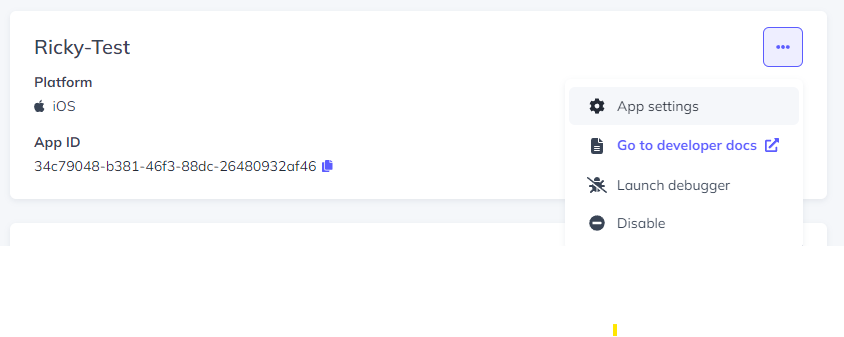
                    1. Native apps (Android or iOS) show one configuration option. Cross-platform apps show two — one for Android and one for iOS.
                    2. Click Configure for the platform you want to set up.

                    Android configuration

                    Upload your Firebase Cloud Messaging key file. This is a JSON-format private key that authenticates access to Firebase services. See Creating Firebase Cloud Messaging Service for instructions on generating this file.

                    iOS configuration

                    Enter the following:

                    Developer Team ID — A 10-character value assigned by Apple. Find it in your Apple Developer account.

                    App Bundle Identifier — Your app's unique identifier in reverse-DNS format (for example, com.yourcompany.yourapp).

                    APNs Key file — A .p8 private key file used to authenticate with Apple Push Notification service.

                    APNs Key ID — The key ID associated with your APNs key file.

                    Test your configuration

                    After entering all credentials, click Check configurations on the app push settings modal. If everything is correct, click Save. Your app is now ready to receive push notifications from Appcues Workflows.

                    If the configuration check fails

                    • Verify that all four fields are filled in correctly for iOS, or that the JSON key file is valid for Android.
                    • Confirm that the Firebase Cloud Messaging API is enabled in your Google Cloud project.
                    • For iOS, confirm the APNs key hasn't been revoked in your Apple Developer account.
                    • Contact support@appcues.com if the issue persists.
                    mobile push settings configure push notification

                    Was this article helpful?

                    Yes
                    No
                    Give feedback about this article

                    Related Articles

                    • Create a Workflow
                    • Build Push Notifications
                    • Workflows Overview
                    Appcues logo

                    Product

                    Why Appcues How it works Integrations Security Pricing What's new

                    Use cases

                    Appcues Integration Hub User Onboarding Software Feature Adoption Software NPS & Surveys Announcements Insights Mobile Adoption

                    Company

                    About
                    Careers

                    Support

                    Developer Docs Contact

                    Resources

                    The Appcues Blog Product Adoption Academy GoodUX Case studies Webinar Series Made with Appcues

                    Follow us

                    Facebook icon Twitter icon grey Linkedin icon Instagram icon
                    © 2022 Appcues. All rights reserved.
                    Security Terms of Service Privacy Policy

                    Knowledge Base Software powered by Helpjuice

                    Expand