Troubleshoot Pins
Diagnose and fix common issues with Pins not appearing, CSS selector mismatches, z-index conflicts, and Pins inside dropdown menus or interactive elements.
Table of Contents
Pin isn't appearing
Work through these checks in order. Most issues are caught in the first three steps.
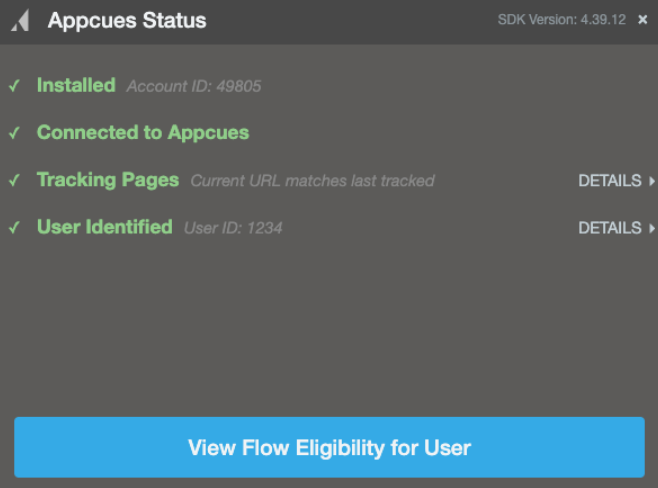
Check that Appcues is installed
Open the Appcues debugger on the page where you expect the Pin to show. Confirm all rows display green checkmarks.
If any rows show red errors, you have an installation issue that needs to be resolved before the Pin can appear. See Installation Testing / Debugging for next steps.
Check user eligibility
There are two ways to check whether a user qualifies for a Pin.
From the Pin's settings page:
- Open the Pin's settings page in Studio.
- In the Audience targeting section, click Check eligibility.
- Enter the user ID you want to verify and click validate. The tool reports whether the user matches your audience conditions.
From the Users page:
- Open the Users page in Studio and search for the affected user. See Finding a User if you need help locating them.
- Open the Eligibility tab. This shows all live experiences and whether the user currently qualifies for each one.
- If the Pin shows as Ineligible, click it to see the reason:
- A red X next to Audiences means the user doesn't match the audience targeting rules. Click View details to see which conditions fail.
Check page targeting
Use the Test Page Targeting tool on your Pin's settings page.
- Open your Pin's settings page in Studio.
- Enter the URL where you expect the Pin to appear.
- The tool reports whether the URL matches your page and domain conditions.
If the result says "won't show", review your URL conditions. Common mistakes are covered in the Page targeting isn't matching section below.
Also confirm the domain where you're testing is selected in your Pin's page targeting settings. If you're testing in staging but only have your production domain selected, the Pin won't appear.
Pin icon or button isn't attaching to the element
The Pin is published and the user qualifies, but the icon or button doesn't appear next to the expected element.
CSS selector doesn't match
Pins are anchored to a specific element using a CSS selector. If the selector no longer matches an element on the page, the Pin won't render.
Common causes:
- Your development team updated the UI and the element's class, ID, or structure changed.
- The selector targets a dynamically generated class or ID that changes on each page load.
- The element only exists for certain user roles or account types — users without access to that element won't see the Pin.
To fix:
- Open the Pin in the Builder.
- Click the gear icon on the affected Pin to view the current selector.
- If the selector is invalid, use Reposition to re-select the target element, or manually update the selector field.
- Confirm the selector shows "Unique and valid" in the Builder.
For detailed guidance on building stable selectors, see Troubleshoot element targeting.
Element loads dynamically
If the target element loads after the initial page render (for example, it's fetched via an API call or rendered by a JavaScript framework), the Appcues SDK may evaluate the selector before the element exists.
- Work with your development team to confirm the element is present in the DOM before the Appcues SDK initializes.
- If the element consistently loads late, consider targeting a parent element that is always present, or ask your development team to add a stable
data-appcuesattribute. See Prepare your frontend for Appcues.
Selector matches multiple elements
If the CSS selector matches more than one element on the page, the Pin may render in an unexpected location or not render at all.
Open the Pin in the Builder and check for a "Element not unique" warning. If it appears, click Refine selection and narrow it down using Text or Order filters.
Pin is hidden behind other content
The Pin renders on the page but is visually hidden — covered by another UI element like a modal, sidebar, or sticky header.
Z-index conflict
Pins may be hidden behind elements with a higher z-index.
To fix, increase the Pin's z-index:
- Open the Pin in the Builder.
- Click the gear icon on the Pin.
- Set the z-index to
99999or higher to ensure the Pin appears above other content.
See How Appcues is overlaid for more details on z-index behavior.
Element is clipped by overflow
If the target element's parent container has overflow: hidden set in CSS, the Pin icon may be clipped or invisible even though it's technically rendered.
- Inspect the parent container in your browser's developer tools and check for
overflow: hiddenoroverflow: clip. - If the container clips the Pin, ask your developers to remove
overflow: hiddenfrom the element / ancestor element or target the pin to an element where that styling isn’t applied.
Pin inside a dropdown menu or interactive element
Dropdown menus, popovers, and other interactive elements often don't exist in the DOM until the user interacts with them. This creates two problems: the Pin can't find the element on page load, and the menu may close when the user tries to interact with the Pin.
Pin doesn't appear when the menu opens
The target element only exists in the DOM after the user clicks to open the menu. The Appcues SDK evaluates selectors on page load, so it may miss elements that appear later.
Use inline embedding when placing Pins inside interactive elements. Inline embedding makes the Pin a child of the menu element in the DOM, so it appears when the menu opens and disappears when it closes.
Menu closes when interacting with the Pin
Some dropdown menus close on any click outside the menu, or on pointer events that Appcues triggers. Appcues attempts to cancel conflicting click and pointer-down events while Pins are active, but this doesn't work with every UI framework.
If the menu still closes while you're trying to build or interact with the Pin:
Try holding Shift while in Targeting Mode to interact with the page without closing the menu.
If the issue persists in the Builder, build the Pin on a non-interactive element elsewhere on the page, then manually update the CSS selector to target the correct element inside the dropdown.
If end users can't interact with the Pin because the menu closes, contact support with the name of the UI library your application uses (for example, Radix UI, Bootstrap, Ant Design). The team can investigate whether additional event cancellation is needed.
Multiple Pins on the same page
Unlike Flows, multiple Pins can target the same page and appear simultaneously. If you see more Pins than expected, review the audience and page targeting of each published Pin to confirm they aren't unintentionally overlapping.
If two Pins target the same element, they may visually overlap or stack. Adjust the placement (Inline Left vs. Inline Right vs. Overlaid) or target slightly different elements to separate them.
Page targeting isn't matching
Regex patterns
If using a regex pattern for URL matching, confirm:
- The operator is set to matches regex (not "contains" or "is").
- The pattern is valid. Test it with a regex tester.
AND vs OR conditions
If using multiple URL conditions, check whether they use All (AND) or Any (OR) logic.
Example of a common mistake: You want the Pin to appear on pages containing "account", "dashboard", or "payments." If you use All (AND), the Pin only appears on a URL that contains all three words simultaneously (e.g., https://yourapp.com/account/dashboard/payments) — which may not exist.
Switch to Any (OR) so the Pin appears on any page containing at least one of those words.
Content Security Policy blocking Appcues
Some applications use a Content Security Policy (CSP) that blocks external resources not explicitly allowed. This can prevent the Appcues SDK or Builder from loading.
Open your browser's console (right-click > Inspect > Console tab) and look for errors that mention a Content Security Policy related to Appcues.
If you see CSP errors, your development team needs to add Appcues domains to the allow list. See Content Security Policies for the required configuration.
Still stuck?
Collect the following and contact support:
- The Pin name and its URL from Studio (copy from your browser's address bar on the Pin's settings page).
- The affected user's User ID.
- The page URL where the issue occurs.
- A screenshot or screen recording showing the problem.
- The CSS selector the Pin is targeting (visible in the Builder's gear menu).
- If it's a dropdown or interactive element issue: the name of the UI framework your app uses (e.g., Radix UI, Bootstrap).
- Any console errors visible in the browser's developer tools.