Analyze Checklist performance
Learn more about the analytics data of your checklists to get user engagement insights.
Table of Contents
Use checklist analytics to see how many users started, completed, or skipped your checklist — and to identify which items cause drop-off so you can improve them.
View the analytics page
- Open Appcues Studio and go to Checklists.
- Click the checklist you want to analyze. The analytics page opens.
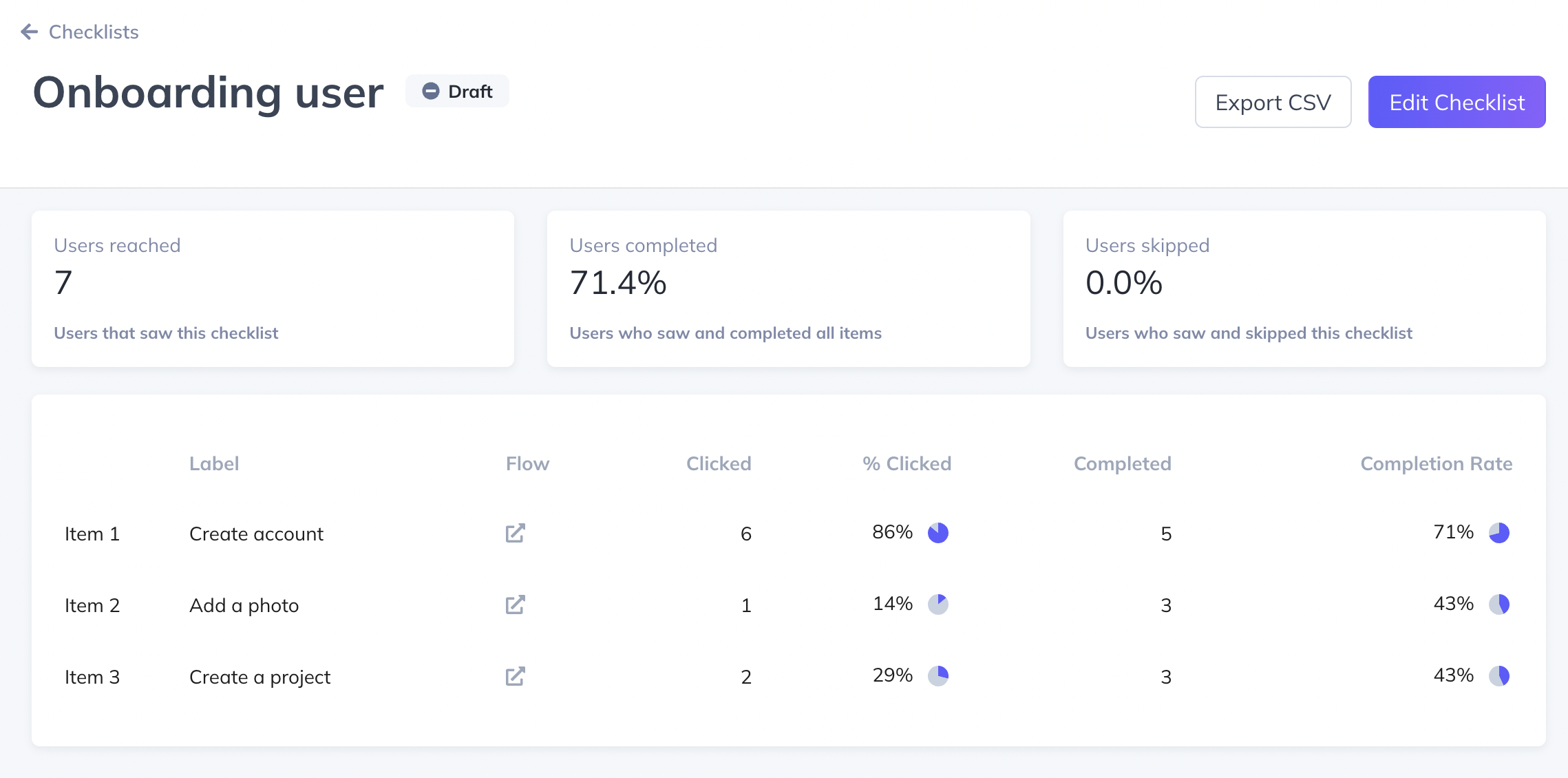
- The page has two sections: the scoreboard and the item breakdown.
The Scoreboard
The scoreboard shows three metrics for the selected date range:
- Users reached — users who saw this checklist. If the checklist displays collapsed (beacon only), the user must open it to count as reached.
- Users completed — users who checked off every item.
- Users skipped — users who dismissed the checklist by clicking "No thanks" before completing all items.
Users who have been reached but haven't completed or skipped are still in progress.

Item breakdown
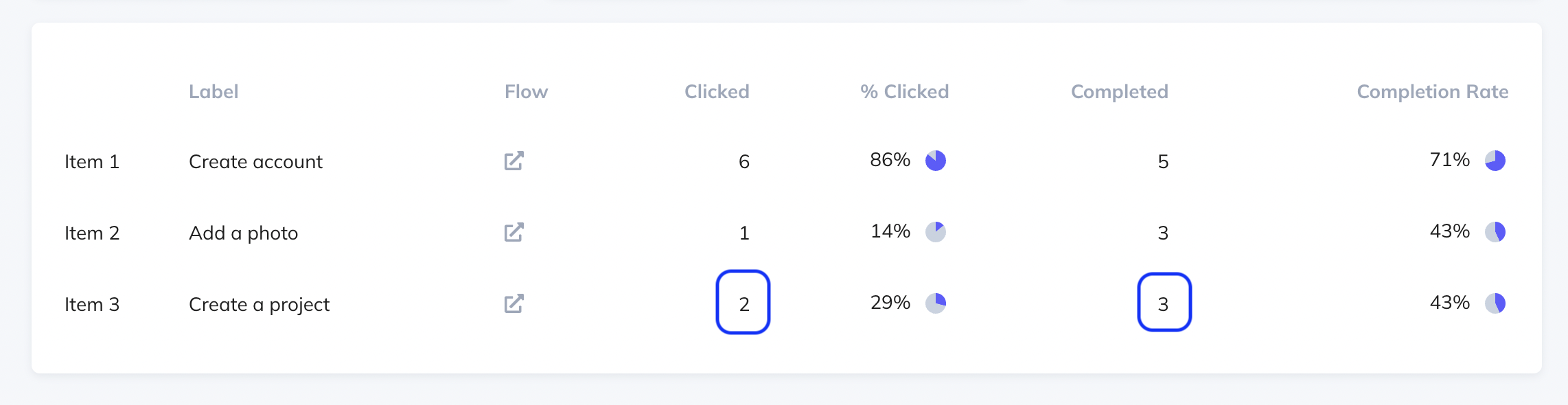
The item breakdown shows per-item metrics: how many users clicked the item and how many completed it.
Completion rate = (users who completed the item / users who saw the checklist) × 100%.
Two things to keep in mind when reading this table:
- Completed can be higher than clicked. The "Completed" column counts anyone who met the item's success criteria, including users who completed the action outside the checklist (for example, they finished the flow from a different entry point). "Clicked" only counts users who clicked the item directly in the checklist.
- A steep drop between consecutive items usually means users are getting stuck or losing interest at that step. Consider reordering items, simplifying the action, or breaking a complex item into two.
Click the arrow icon next to any item to jump directly to that flow's analytics page.
View Checklist events in Events Explorer
Events Explorer gives you a timeline view and lets you search for individual users.
Open Events Explorer in Studio.
In the Event Source dropdown, select Checklist Events.
Click a checklist to see its events broken down by type:
-
checklist_shown— the checklist was displayed to the user (fires once per session, or when recalled viaAppcues.show()) -
checklist_completed— the user completed all items -
checklist_skipped— the user dismissed the checklist before completing all items
Click any event type to see a chart, total and unique event counts, and a searchable table of individual events.
Use the date range picker at the top of the page to adjust the time window.

Export Checklist data
You can export data from two places, depending on what you need.
From the checklist analytics page
- On the checklist's analytics page, click Export.
- Choose Basic CSV or Full CSV. The Full CSV includes your custom user properties alongside the event data.
- Set the date range and download.
The exported file includes a name column with the event type (e.g., checklist_shown, checklist_item_completed) and columns for user ID, timestamp, and page URL.

From Events Explorer
- In Events Explorer, navigate to the specific event type you want to export (Shown, Completed, or Skipped).
- Set the date range.
- Click Export CSV.
This export includes only the selected event type, which is useful when you need a focused dataset — for example, exporting only checklist_skipped events to analyze drop-off.

Checklist events reference
Use these event names when building reports outside Appcues, setting up integration triggers, or querying the Public API.
| Event Name | When it fires |
|---|---|
| checklist_shown | A user has seen the Checklist. This event only fires the first time a checklist is loaded in each session for a user or if the checklist is recalled using our Appcues.show call |
| checklist_completed | A user has fully completed the Checklist |
| checklist_skipped | A user has selected 'No thanks' to dismiss prior to completing all items on the list |
| checklist_dismissed | A user has selected 'No thanks' to dismiss after completing all items on the checklist |
| checklist_item_started | A user has clicked an item on the Checklist |
| checklist_item_completed | A user has met the success criteria to check an item off of the list |
Default Properties
Each of the above events will have default properties and additional properties related to the event that will be available via the CSV download
| Property Name | Property Description |
|---|---|
| timestamp | The time at which this event occurred |
| userId | The id for the user that completed the event |
| currentPageTitle | Title of the page the user was on when the event was completed |
| currentPageUrl | URL of the page the user was on when the event was completed |
| sessionPageviews | Number of pages the user visited in the session in which the event was completed |
Event Specific Properties
| Event Name | Event Properties |
|---|---|
| checklistId | Internal Id of the checklist (not a targetable option) |
| checklistName | The name of your checklist |
| itemId | Internal identifier of the relevant checklist item |
| itemIndex | List order of the relevant item (starting at 0) |
| itemLabel | Name of the relevant checklist item (i.e. text of checklist item) |
If the data doesn't look right
- Users reached is 0 but the checklist is published. Check that your audience targeting matches actual users and that the checklist is published to the correct domain. See Troubleshooting checklists.
- Completed count is higher than clicked. This is expected — completions count users who met the success criteria from any entry point, not just clicks within the checklist. See the item breakdown section above.
- Data appears delayed. Events can take a few minutes to appear in analytics. If data is missing after 15 minutes, check that Appcues is installed correctly on the relevant pages using the Appcues debugger.
- CSV export is empty. Verify the date range covers the period when the checklist was live. Also confirm that you're exporting from a published (not draft) checklist.