US English (US)
ES Spanish

Submit Article Requests

Do you have a suggestion for an article you would like to see created?
Feel free to submit this form and add your suggestions to our document board.

Please fill out the contact form below and we will reply as soon as possible.

  • Integration Hub
  • Contact Us
English (US)
US English (US)
ES Spanish
  • Docs home
  • Workflows
  • Building & Configuration

Add a True/False Branch

Split users into two paths based on a condition you define

Updated at March 30th, 2026

Submit Article Requests

Do you have a suggestion for an article you would like to see created?
Feel free to submit this form and add your suggestions to our document board.

Please fill out the contact form with the details about the help content you'd like to see.

  • Home

  • Getting Started

    • Installation & Developers

      • Web Experiences

        • Mobile Experiences

          • Workflows

            • Analytics & Data

              • Account Management

                • Best Practices

                  • Integrations

                    Table of Contents

                    Add a True/False Branch to the canvas Check eligibility A/B testing with True/False Branch If users aren't following the expected path

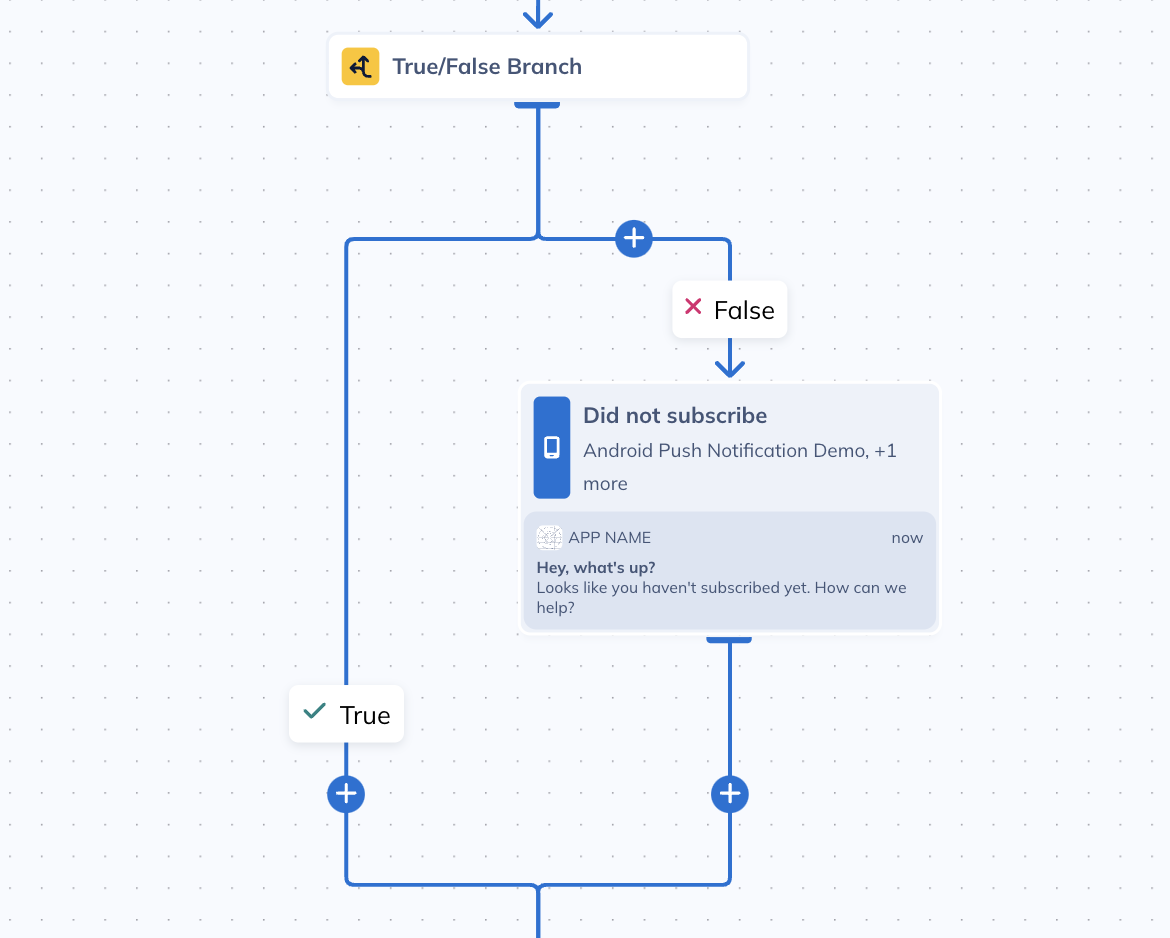
                    A True/False Branch evaluates a condition for each user and routes them down one of two paths. Users who match the condition follow the True path; everyone else follows the False path. Use it for binary decisions: has this user completed onboarding? Is this user on a paid plan? Did they open the last email?

                    Add a True/False Branch to the canvas

                    1. Click any + button on the Workflow canvas.
                    2. Under Logic, select True/False Branch.
                    3. Click Edit Conditions in the settings panel on the right.
                    4. Define your condition. Conditions can be based on user properties, group properties, experience interactions, custom events, segments, and more.
                    5. Click Save. The condition summary appears on the canvas.

                    After saving, you can add nodes to the True and False paths by clicking the + button on either branch.
                    Check eligibility

                    After configuring conditions, click Check eligibility in the settings panel to test whether specific users currently match the condition. This is useful for validating your logic before publishing — enter a user ID or search for a user and see whether they'd go down the True or False path right now.

                    A/B testing with True/False Branch

                    You can use a True/False Branch to split users randomly for an A/B test. Set the condition to evaluate the Audience Randomizer user property, which is a number from 1 to 100 randomly assigned to each user on first login.

                    For an even split, set the condition to Audience Randomizer is greater than or equal to 51. Users with a value of 51–100 follow the True path; users with 1–50 follow the False path. Then add different messages to each branch.

                    The split won't be perfectly 50/50 because the randomizer assigns values independently per user. The variance decreases as your audience grows. For small audiences, expect some imbalance.

                    For more than two variants, use a Multi-path Branch instead.

                    If users aren't following the expected path

                    • Click Check eligibility to verify the condition evaluates as you expect for specific users.
                    • Confirm the user properties or events you're referencing are being sent to Appcues with the expected values. Open the user's profile in Studio and inspect their properties.
                    • If the condition uses a segment, check that the segment definition is current and that the user's membership is what you expect.
                    ab test in worflows false true

                    Was this article helpful?

                    Yes
                    No
                    Give feedback about this article

                    Related Articles

                    • What is a Flow?
                    • Create a conditional survey with Appcues
                    • Set Flow Priorities
                    • Manage email suppression lists
                    Appcues logo

                    Product

                    Why Appcues How it works Integrations Security Pricing What's new

                    Use cases

                    Appcues Integration Hub User Onboarding Software Feature Adoption Software NPS & Surveys Announcements Insights Mobile Adoption

                    Company

                    About
                    Careers

                    Support

                    Developer Docs Contact

                    Resources

                    The Appcues Blog Product Adoption Academy GoodUX Case studies Webinar Series Made with Appcues

                    Follow us

                    Facebook icon Twitter icon grey Linkedin icon Instagram icon
                    © 2022 Appcues. All rights reserved.
                    Security Terms of Service Privacy Policy

                    Knowledge Base Software powered by Helpjuice

                    Expand