Troubleshoot Launchpads
Diagnose and fix common issues with Launchpads not appearing, Flows not showing, inline placement problems, and targeting mismatches.
Table of Contents
Launchpad isn't appearing
Work through these checks in order. Most issues are caught in the first three steps.
Check that Appcues is installed
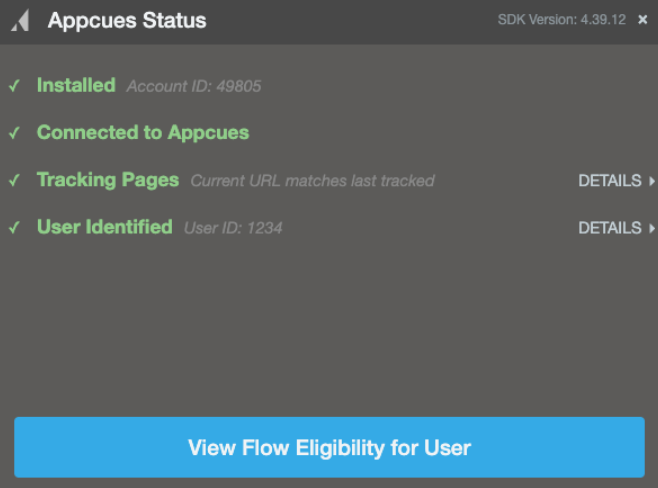
Open the Appcues debugger on the page where you expect the Launchpad to show. Confirm all rows display green checkmarks.
If any rows show red errors, you have an installation issue that needs to be resolved before the Launchpad can appear. See Installation Testing / Debugging for next steps.
Check user eligibility
The user must match the Launchpad's audience targeting rules.
- Open your Launchpad's settings page and select the button Check eligibility in Audience targeting.
- This opens a diagnostics page. Enter the user-id you want to verify and click validate.
- The tool reports whether the user matches your audience conditions.
If the test fails, review your audience conditions.
From the Launchpad's settings page:
- Open the Launchpad's settings page in Studio.
- In the Audience targeting section, click Check eligibility.
- Enter the user ID you want to verify and click validate. The tool reports whether the user matches your audience conditions.
From the Users page:
- Open the Users page in Studio and search for the affected user. See Finding a User if you need help locating them.
- Open the Eligibility tab. This shows all live Launchpads, and whether the user currently qualifies for each one.
- If the Launchpad shows as Ineligible, click View details to see which conditions fail and adjust your targeting.
Check page targeting
Use the Test Page Targeting tool on your Launchpad's settings page to verify your URL and domain conditions.
- Open your Launchpad's settings page in Studio.
- Enter the URL where you expect the Launchpad to appear.
- The tool reports whether the URL matches your page and domain conditions.
If the test fails, review your URL conditions. Common mistakes are covered in the Page targeting isn't matching section below.
Check the domain
Confirm the domain where you're testing is included in your Launchpad's page targeting settings. If you're testing in staging but only have your production domain selected (or vice versa), the Launchpad won't appear.
Flows aren't showing inside the Launchpad
The Launchpad appears, but the Flow list block is empty or missing expected Flows.
Flow not opted in
Flows do not appear in Launchpads automatically. Each Flow must be explicitly enabled.
- Go to the Flow's settings page in Studio.
- Find the Launchpad panel.
- Confirm Allow this flow to be recalled in any launchpad is checked.
If the box is unchecked, the Flow won't appear in any Launchpad regardless of other settings.
"Nothing to see here" in preview mode
If you're using preview mode in the builder, the Flow list block displays "Nothing to see here at the moment." This is expected — preview mode only renders Links block content. Flows appear only during a live test (published to staging or internal testers). See Preview and test a Launchpad.
Flow uses an event-based trigger
Flows with event-based triggers do not appear in Launchpads, even if the Launchpad option is enabled in the Flow's settings. Only Flows with page-based or manual triggers are eligible.
To check: go to the Flow's settings page and review the Trigger section. If it's set to trigger on an event, that Flow cannot appear in a Launchpad.
User doesn't qualify for the Flow
Flows in the Flow list block respect their own audience targeting. If the user doesn't meet the Flow's audience rules, it won't appear.
- Go to Users in Studio and search for the affected user.
- Check whether the user meets the Flow's audience targeting conditions.
Also check the Flow's page targeting if Only show if the page matches is enabled — the Flow will only appear in the Launchpad when the user is on a page that satisfies the Flow's own page targeting rules.
Flows added as items in a Links block are always displayed and do not respect audience targeting. If a Links block item isn't appearing, the issue is with the Launchpad itself, not the Flow's targeting.
Inline beacon isn't rendering correctly
These issues are specific to Launchpads using inline beacon placement, which relies on a CSS selector to position the beacon inside your page layout.
Beacon doesn't appear at all
The CSS selector may not be matching any element on the page.
- Open the Appcues Chrome Extension and go to your Launchpad's placement settings.
- Check the selector validation. A green checkmark with "Selector is unique and valid" confirms the selector targets exactly one element. If it shows an error, the selector needs to be updated.
- Right-click the area where the beacon should appear in your app, select Inspect, and verify the target element exists in the DOM.
Common causes:
- The target element loads dynamically after the page renders. The Appcues SDK may evaluate the selector before the element exists. Work with your development team to confirm the element is present in the initial DOM or loaded before the Appcues SDK initializes.
- The CSS selector references a class or ID that changed. Re-select the target element in the Chrome Extension to generate an updated selector.
- The page has a different DOM structure on certain screen sizes or for certain user roles. Test the selector on the same page and in the same conditions where end users will see it.
Beacon appears in the wrong position
If the beacon renders but is misplaced, check the embedding option and selector target.
- Open the Chrome Extension and review the placement settings:
- Inline Left: The beacon displays to the left of the content inside the target element.
- Inline Right: The beacon displays to the right of the content inside the target element.
- Overlaid: The beacon is overlaid on top of the content in the target element's area.
- Confirm the selector is targeting the correct element — not a parent or child of the intended element. Use the browser's Inspect tool to compare.
- If the positioning is slightly off, use the fine-tune position controls in the Chrome Extension to adjust.
Selector matches multiple elements
If the CSS selector matches more than one element on the page, the beacon may render in an unexpected location or not render at all.
- If you see a ‘Element not unique’ error in the Extension, make the selector more specific by selecting Refine selection. Narrow it down to a unique element using Text or Order filters.
For general CSS selector guidance, see Troubleshoot element targeting.
Beacon disappears on navigation
In single-page applications (SPAs), the target element may be removed and re-rendered when the user navigates between views. The beacon may not reattach to the new element.
- Confirm the target element persists across the pages where the Launchpad is targeted. If the element is only present on certain views, adjust the Launchpad's page targeting to match only those views.
- If the element is re-rendered on every navigation, work with your development team to confirm the element's selector remains consistent after re-renders.
Multiple Launchpads appearing
If a user qualifies for more than one published Launchpad, all of them display simultaneously. This is expected behavior.
To resolve, review the audience and page targeting of each published Launchpad to ensure they don't overlap for the same users and pages. Use segments to separate audiences, or narrow page targeting so each Launchpad appears on different pages.
Knowledge base search isn't working
If search is enabled but not returning results:
- Confirm the integration shows as connected in the Launchpad's settings.
- Verify the API key hasn't been revoked or rotated since setup.
- Check that the domain value matches your knowledge base URL exactly.
- Verify that articles are public. Restricted articles don't show up in the Launchpad.
- Test the same search directly in your knowledge base to confirm articles exist and are published.
See Set up knowledge base search for full setup and troubleshooting details.
Page targeting isn't matching
Regex patterns
If using a regex pattern for URL matching, confirm:
- The operator is set to matches regex (not "contains" or "is").
- The pattern is valid. Test it with a regex tester.
AND vs OR conditions
If using multiple URL conditions, check whether they use All (AND) or Any (OR) logic.
Example of a common mistake: You want the Launchpad to appear on pages containing "account", "dashboard", or "payments." If you use All (AND), the Launchpad only appears on a URL that contains all three words simultaneously (e.g., https://yourapp.com/account/dashboard/payments) — which may not exist.
Switch to Any (OR) so the Launchpad appears on any page containing at least one of those words.
Content Security Policy blocking Appcues
Some applications use a Content Security Policy (CSP) that blocks external resources not explicitly allowed. This can prevent the Appcues SDK or builder from loading.
To check: open your browser's console (right-click > Inspect > Console tab) and look for errors that mention a Content Security Policy related to Appcues.
If you see CSP errors, your development team needs to add Appcues domains to the allow list. See Content Security Policies for the required configuration.
Still stuck?
Collect the following and contact support:
- The Launchpad URL from Studio (copy it from your browser's address bar on the Launchpad's settings page).
- The affected user's User ID.
- The page URL where the issue occurs.
- A screenshot or screen recording showing the problem.
- If it's an inline placement issue: a screenshot of the CSS selector and placement settings from the Chrome Extension.
- Any console errors visible in the browser's developer tools.