Configure Page Targeting
Control which pages in your app trigger an experience by setting URL path conditions and selecting target domains.
Table of Contents
What is page targeting?
Page targeting determines where an experience appears. When a user lands on a URL, Appcues checks whether that URL matches the conditions you set. If it does — and the user also passes audience targeting — the experience can fire.
Page targeting has two parts: path targeting (which pages) and domain targeting (which environments).

Build URL vs. page targeting
The Build URL tells the Appcues builder which page to open when you edit the experience. It has no effect on where the experience appears when published.

Set up path targeting
Open your experience in Studio and go to the Settings step. Under Page Targeting, choose one of the following.
Any page
Select Any page to show the experience on every page where Appcues is installed and the user qualifies.
A specific path
A path is everything after the domain in a URL. In https://yourapp.com/dashboard/settings, the path is /dashboard/settings.
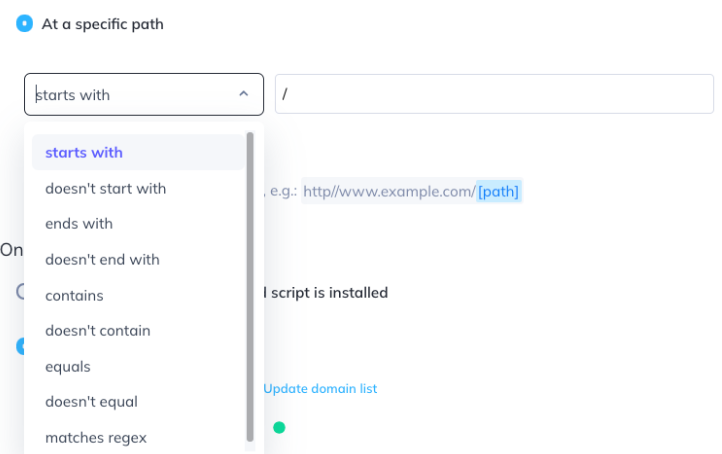
Choose At a specific path and pick a condition:
| Condition | What it matches | Example |
|---|---|---|
| Starts with | Path begins with a value |
/home matches /home/user/123 but not /dashboard/home
|
| Ends with | Path ends with a value |
/settings matches /home/user/123/settings but not /home/user/123/profile
|
| Contains | Path includes a value anywhere |
/user matches /home/user/123 and /search/users/all but not /home
|
| Equals | Path is an exact match |
/home/user matches only /home/user — not /home or /home/user/123
|
| Matches regex | Path matches a regular expression pattern | See "Use regex for dynamic URLs" below |
Each condition also has a negative variant (doesn't start with, doesn't contain, etc.) that inverts the match.
To target a homepage with no path (like
https://yourapp.com/), use Equals with the value/.
Use multiple conditions
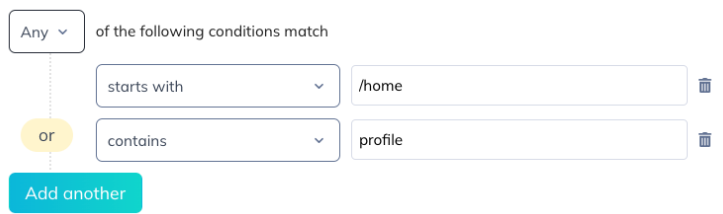
You can add more than one condition and choose how they combine:
-
All (AND) — the path must satisfy every condition simultaneously. Example: starts with
/homeAND containsprofile. -
Any (OR) — the path only needs to satisfy one condition. Example: starts with
/homeOR starts with/dashboard.
Common mistake with OR: You want the experience on pages containing "account", "dashboard", or "payments." If you use All, the experience only appears on a URL containing all three words at once — which probably doesn't exist. Switch to Any.
Watch out for negative conditions with Any
Combining conditions like "doesn't contain /settings" OR "doesn't contain /billing" matches almost every URL. That's because a URL only needs to pass one condition. The URL /settings doesn't contain /billing, so it passes the second condition and qualifies — even though you probably meant to exclude it.
If you want to exclude multiple values, use All instead. "Doesn't contain /settings" AND "doesn't contain /billing" only matches URLs that contain neither word. That's almost always the intended behavior.
Use regex for dynamic URLs
Many apps include user-specific or account-specific IDs in URLs, like https://yourapp.com/dashboard/23944-3/user/123456. Use the Matches regex condition to handle these.
Common regex patterns
| Pattern | Meaning | Example match |
|---|---|---|
.+ |
One or more of any character (wildcard) |
/users/.+/dashboard matches /users/abc123/dashboard
|
[0-9]+ |
One or more digits |
/user/[0-9]+ matches /user/12345
|
(option1|option2) |
Either value |
/dashboard/(settings|profile) matches both paths |
[a-z]+ |
One or more lowercase letters |
/section/[a-z]+ matches /section/overview
|
The most common pattern is .+ as a wildcard to replace dynamic segments:
/dashboard/.+/settingsThis matches /dashboard/23944-3/settings, /dashboard/abc/settings, and any other value between the two static segments.
Regex vs. wildcards: The
*character works as a wildcard inside the Appcues builder when building experiences, but it does not work the same way in regex. In regex, use.+instead of*for wildcard matching.
Steps for targeting a dynamic URL
- Open your experience's Settings step.
- Under Path Targeting, select At a specific path.
- Choose Matches regex.
- Enter a pattern that keeps the stable parts of the URL and replaces dynamic segments with
.+.
For example, if your URLs look like https://yourapp.com/dashboard/23944-3/user/123456:
/dashboard/.+/user/.+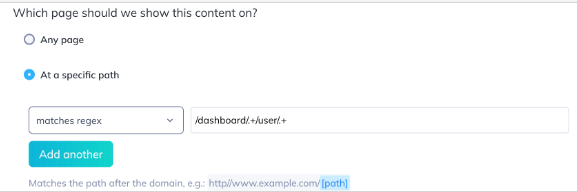
Test your regex
Use the Test URL Targeting tool on the settings page (see below) or paste your pattern into regex101.com to verify it matches the URLs you expect.
Set up domain targeting
Under On which environments?, choose one of:
Everywhere my Appcues embed script is installed — the experience can appear on any domain where your Appcues account is installed.
Only the domains I choose — restrict the experience to specific domains. This is useful for separating production from staging.
A green circle next to a domain means Appcues has detected page views from that domain. A grey circle doesn't necessarily mean Appcues isn't installed — the indicator is based on historical page views and may lag behind recent changes. Use the Appcues debugger to verify installation.
The domains listed here come from your account settings. To add or manage domains, see Manage Available Domains.
Even if a domain shows as grey, you can still target it. As long as the Appcues script is installed there, the experience will work.
Test URL targeting
Use the built-in test tool to verify your conditions before publishing.
- On your experience's Settings page, click Test URL Targeting.

- Paste a sample URL.
- The tool reports whether the URL matches your path and domain conditions.

If page targeting isn't matching
- Check your path conditions. Use the Test URL Targeting tool to see exactly which condition fails.
- Check regex patterns. Make sure the operator is set to matches regex (not "contains" or "equals"). Test the pattern at regex101.com.
- Check All vs. Any logic. If you have multiple conditions, confirm whether they should all match or just one.
- Check domain targeting. Confirm the domain is listed in your Available Domains.
Still stuck? Contact support@appcues.com with your experience URL from Studio, a sample page URL, and a screenshot of your page targeting settings.