Target Launchpads
Define where your Launchpad appears, who sees it, and which Flows are available inside it.
Table of Contents
Open the targeting page
- Click Publish in the top-right panel of the Launchpad builder. You are redirected to the Launchpad settings page in Studio.
- Configure page targeting and audience targeting

Set page targeting
Page targeting controls which pages and environments your Launchpad appears on.
- On the Launchpad settings page, go to the Page targeting section.
- Set the URL conditions to define which pages in your app display the Launchpad.
- Select which domains (environments) the Launchpad is active on — typically your production domain, but you can also add staging environments for testing.
For detailed instructions, see Page Targeting. For dynamic URLs, see Targeting Dynamic URLs. To verify your rules, use the Test Page Targeting tool on the settings page.
Set audience targeting
Audience targeting controls which users see your Launchpad.
- On the Launchpad settings page, go to the Audience section.
- Choose one of:
- All users: Every user in your application sees the Launchpad.
- Users in a segment: Only users who belong to a specific segment see the Launchpad.
For detailed instructions, see Audience Targeting.
Configure Flows to show in a Launchpad
Published Flows do not automatically appear in a Launchpad. You need to opt each Flow in individually from that Flow's settings page.
- Go to the Flow's settings page in Studio.
- Find the Launchpad panel.
- Check Allow this flow to be recalled in any launchpad.
- Choose a page-matching option:
-
Only show if the page matches (default): The Flow appears in the Launchpad only when the user is on a page that satisfies the Flow's own page targeting. Use this for Flows that are relevant to a specific page — for example, a Flow published to
/analyticsonly appears in the Launchpad when the user is on that page. - Uncheck "Only show if the page matches": The Flow appears in the Launchpad on all pages where the Launchpad is installed. Use this for Flows that work as general announcements or notifications.
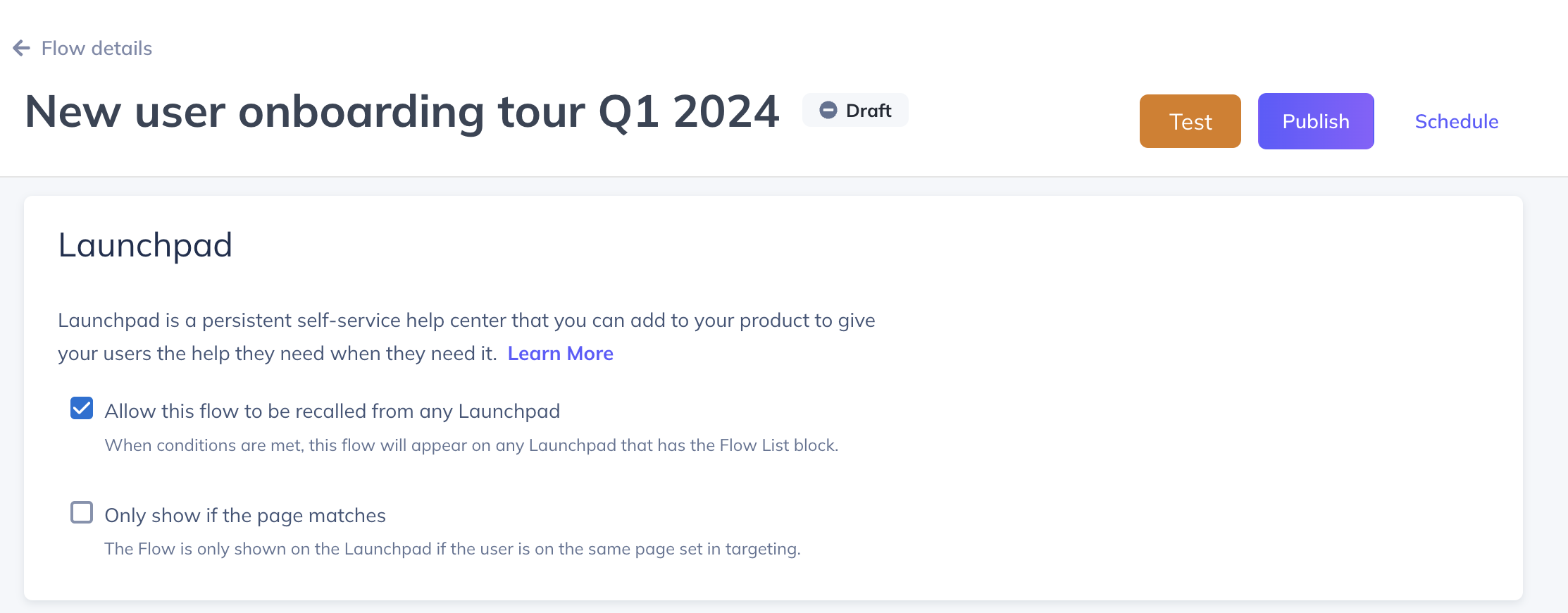
Audience targeting for Flows in a Launchpad
Flows in the Flow list block respect their own audience targeting. If a Flow has specific audience rules, only users who meet those rules see it in the Launchpad.
Flows added as items in a Links block are always displayed and do not respect audience targeting.
Show a Flow only through the Launchpad
To prevent a Flow from launching automatically and only make it available inside the Launchpad:
- Go to the Flow's settings page.
- In the Trigger section, select Only manually.
The Flow will only launch when a user clicks it inside a Launchpad.
Flows that use event-based triggers do not appear in the Launchpad, even if the Launchpad option is enabled.
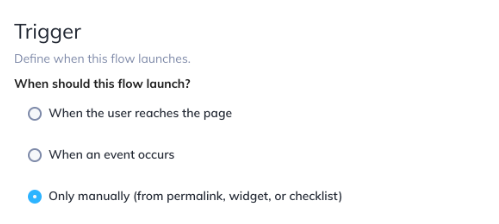
Set a display name
You can give a Flow a different name when it appears in a Launchpad. This is useful if you use an internal naming convention for managing Flows but want a user-friendly name visible to your customers.
- Go to the Flow's settings page in Studio.
- In the Launchpad panel, enter a Display name.
The display name only affects how the Flow appears inside the Launchpad. It does not change the Flow's name elsewhere in Studio.
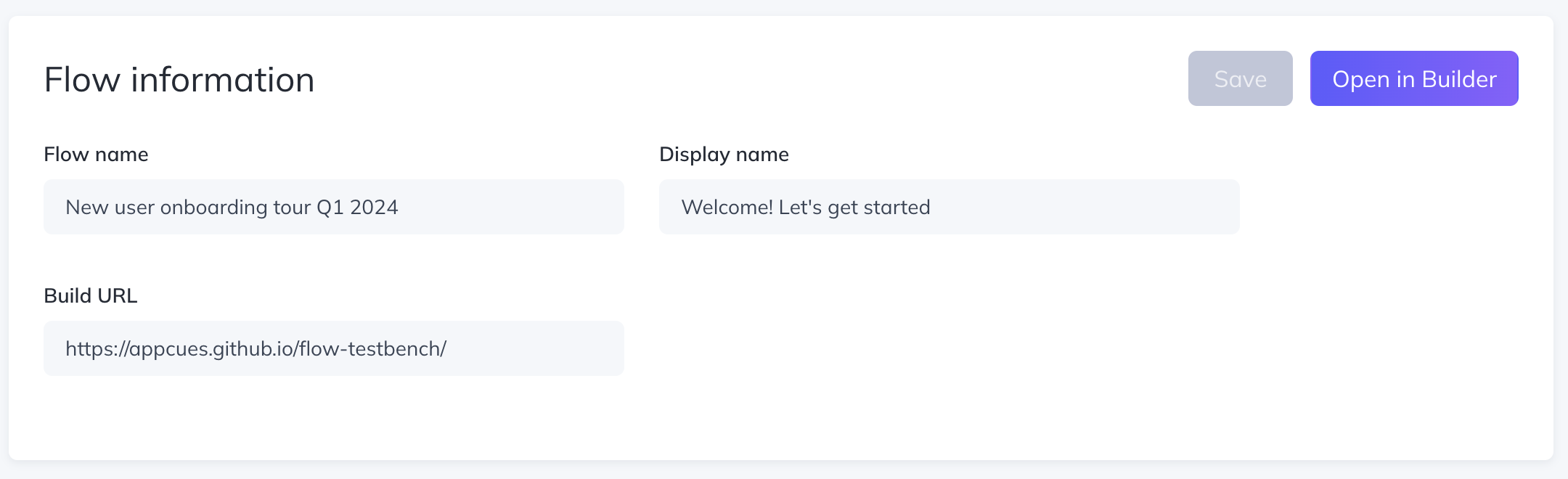
Confirm it worked
- Use the Test Page Targeting tool on your Launchpad's settings page to verify URL and domain conditions match.
- Check that your test user belongs to the targeted segment by going to Users, searching for the user, and reviewing the Segments tab.
- Publish to a staging environment or target an internal tester segment to verify the full experience. See Preview and test a Launchpad.
If the Launchpad or Flows don't appear
- Verify Appcues is installed on the target page. Open the Appcues debugger and confirm all rows show green checkmarks.
- Check that the user meets the Launchpad's audience targeting and belongs to the correct segment.
- Confirm the page URL matches both the Launchpad's page targeting and the Flow's page targeting (if "Only show if the page matches" is enabled).
- Verify the Flow is not event-triggered — event-triggered Flows do not appear in Launchpads.
- If you see the message "Nothing to see here at the moment" in preview mode, this is expected. Flows only appear during a live test or after publishing.
- See Troubleshoot Launchpads for a full diagnostic walkthrough.
If the issue persists, contact support with the Launchpad URL from Studio, the affected user ID, and a screenshot of your targeting settings.